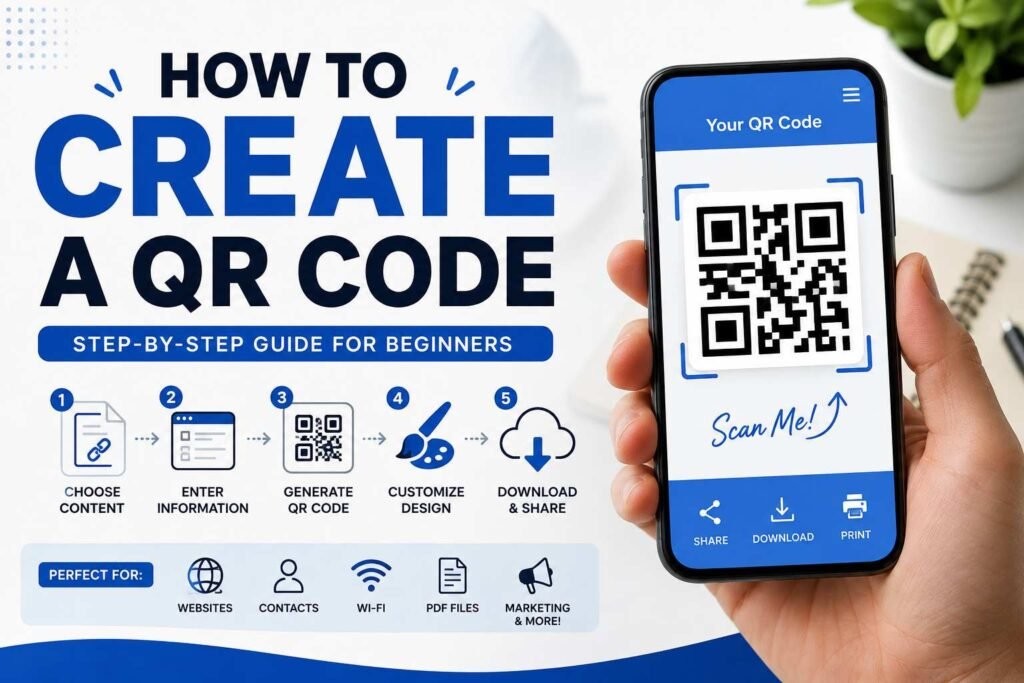
Learning how to create a QR code is easier than ever. Whether you want to share a website, digital menu contact information, Wi-Fi details, social media profile, payment page, PDF or another type of content a QR code can connect people to information with a quick scan. Modern smartphones can generally scan QR codes directly through their camera making them a convenient bridge between printed materials and online content.
QR codes are now commonly used on business cards, restaurant menus, posters, product packaging, event invitations, advertisements, receipts and signs. The good news is that you do not need technical knowledge to generate one. With the QR code generator you can enter your information customize the design download the finished code and test it before sharing or printing it.
This guide explains how to make a QR code from start to finish including choosing the content understanding static and dynamic QR codes customizing your design testing your code and avoiding common mistakes.
What Is a QR Code?
A QR code, short for Quick Response code is a two- barcode that stores information in a pattern of square modules. Unlike one-dimensional barcodes QR codes can store information across both horizontal and vertical dimensions.
When a smartphone camera or QR scanner reads the pattern it interprets the encoded information. Can perform an action. Depending on the content that action might open a website, display text connect to Wi-Fi save contact information open an email or launch another supported function.
The versatility of QR codes makes them useful for both professional purposes. A small printed square can eliminate the need for someone to type a web address manually.
Why Use a QR Code?
There are reasons to use QR codes in everyday communication and marketing.
First they make information easier to access. Of asking customers to type a complicated URL you can place a code on a flyer or sign and let them scan it.
Second QR codes work well across digital environments. A restaurant can place one on a table a business can print one on a business card. An event organizer can add one to a printed ticket.
Third QR codes can support types of information. Common applications include:
- Website URLs
- Online menus
- Contact information
- Wi-Fi credentials
- Email addresses
- Phone numbers
- Text messages
- Social media profiles
- Event information
- Product pages
- Online forms
- Digital documents
- Payment pages
The best use depends on what you want the person scanning the code to do.
How to Create a QR Code Step by Step?
The approach is to use an online QR code generator. The general process is straightforward. Usually involves selecting the content type entering your information generating the code customizing it and downloading the final image.
Step 1: Decide What Your QR Code Should Do
Before generating anything determine the purpose of the code.
If you want people to visit your website you will need the page URL. If you want customers to contact your business you may need a phone number, email address or contact card.
For example a business card could use a QR code that opens a contact page. A restaurant could use one that opens its menu. A real estate agent might connect the code to a property listing.
Defining the goal first helps you select the QR code type and avoid unnecessary complexity.
Step 2: Choose a QR Code Generator
Next select a QR code generator. Look for a tool that supports the content you need and gives you a download option.
For a permanent URL a static QR code may be enough. If you expect to change the destination or want scan analytics you may want a dynamic QR code instead.
Some generators also provide design customization, logos, analytics, multiple file formats and campaign management.
Step 3: Enter Your Information
Once you have selected the QR code type enter the information you want to encode.
For a website QR code paste the URL. Double-check the address before generating the code because an incorrect URL can send visitors to the page.
For formats carefully enter the required information. A small typing error in a phone number, email address, Wi-Fi password or URL can make the code less useful.
Step 4: Generate the QR Code
Click the generators create, generate or similar button. The tool should produce a QR code based on your information.
At this stage scan the version before making extensive design changes. This gives you a baseline for comparison if you later customize the appearance.
Step 5: Customize the Design
QR code generators allow you to modify the appearance of the code.
Depending on the tool you may be able to change:
- Colors
- Corner shapes
- Module styles
- Background
- Logo placement
- Frame style
- Surrounding text
Customization can make a QR code fit your branding but appearance should never take priority over readability.
The QR pattern needs contrast and clear spacing for scanners to recognize it. If you add a logo use it carefully. Test the result repeatedly.
Step 6: Download the QR Code
After creating and testing the design download the QR code in a format.
PNG is convenient for websites, documents, presentations and many digital applications. SVG is particularly useful for design and printing because it is a vector format that can be scaled without the same pixelation concerns associated with raster images.
If your printer or designer has requirements ask which format and resolution they prefer.
Step 7: Test the Final Code
Testing is one of the important parts of the process.
Do not assume that a QR code works simply because it was generated successfully. Scan the version using a smartphone and verify that it performs the intended action.
If the code will be printed, test a sample at the approximate size and viewing distance you expect customers to use.
Also test the exported file rather than relying only on the preview inside the generator.
Use Cases for Different QR Code Types
How to Make a QR Code for a Website?
A website QR code is one of the common applications.
Start by copying the exact page URL you want visitors to access. Avoid using a homepage URL if your campaign is specifically promoting a product, article, registration form or landing page.
Paste the URL into your generator. Create the code.
Before publishing it scan the code. Confirm that it opens the intended page. Check the destination on than one device if possible.
For printed marketing materials consider whether the destination could change in the future. A static code permanently stores its destination while a dynamic code can use a managed redirect that allows the destination to be updated later.
How to Make a QR Code for a Link?
If your primary goal is sharing a link the process is particularly simple.
Copy the URL choose the URL option in your generator paste the link and generate the code.
Keep the destination page mobile- because most people will scan a QR code with a smartphone. The scan itself may take a second but a poor mobile experience can cause visitors to leave immediately.
You should also make sure the link uses HTTPS when appropriate and that the page loads correctly.
How to Create a QR Code for Wi-Fi?
QR codes can also simplify Wi-Fi access.
Of asking guests to type a long password you can provide a QR code containing the network information supported by the generator and device.
This can be useful in homes, offices, hotels, cafés waiting rooms and events.
Before displaying the code remember that anyone who can scan it may potentially receive the encoded network information. Place Wi-Fi QR codes accordingly. Avoid exposing sensitive network credentials unnecessarily.
How to Create a QR Code for a Business Card?
A digital business card QR code can provide a way to share professional information.
You can direct the code to a contact page or supported contact-card format containing details such as:
- Name
- Job title
- Company
- Phone number
- Email address
- Website
- Social media profiles
This approach can reduce the amount of information printed directly on a traditional business card.
For networking always test the code before printing hundreds of cards. A small mistake can be expensive to correct a large print run has been produced.
How to Create a QR Code for a PDF or File?
QR codes can also provide access to files.
For example a business could place a code on printed instructions that directs customers to a PDF manual. A real estate professional could use a code to provide a property brochure while an event organizer could link attendees to a schedule.
For a file-based QR campaign the important consideration is the destination. The file must remain accessible to people who scan the code.
If the file URL changes and you are using a QR code you generally need to create a new code. A dynamic system can potentially let you update the destination without replacing the printed pattern.
Static vs. Dynamic QR Codes
Understanding the difference between dynamic QR codes is important before choosing a generator.
Static QR Codes
A QR code stores the actual information directly, within the QR pattern. If you encode a website address that destination is effectively fixed once the code is generated.
The major advantage is simplicity. There is no redirect service required for the encoded destination and a generated static code does not depend on a QR platform continuing to host a redirect.
The downside is that you cannot just change the encoded destination after printing. If the URL changes you usually have to make a code.
Static codes are good for information that doesn’t change like contact details Wi-Fi information or a website address that you expect to stay the same.
Dynamic QR Codes
Dynamic QR codes usually have a managed redirect URL of the actual destination. This means the destination can be changed using the service without changing the printed QR pattern.
Dynamic codes can also offer data about how times they were scanned, depending on the provider and the plan.
This can be helpful for marketing campaigns where you want to track how many people scan them or update the destination after the printed materials have already been sent out.
However dynamic QR codes are dependent on the redirect service. Before using one for a term important campaign understand the providers costs, availability, ownership rules and account needs.
Dynamic: Which One Should You Pick?
The answer depends on your project.
Pick a static QR code when:
- Your destination will not change.
- You want a solution.
- You do not need built-in scan data.
- You want the information stored directly in the code.
Choose a dynamic QR code when:
- You might change the destination later.
- You need scan data.
- You are running a marketing campaign.
- You are printing items that cost a lot or last a time.
- You want to manage than one campaign.
Neither choice is always better. The right one depends on whether you need something that stays the same or something that can change for your project.
QR Code Design Tips
Good design can make your QR code more appealing. The main thing is that it works.
- Make Sure There Is a Clear Difference: The QR pattern should be very different from the background. Avoid using colors where the squares and background’re too similar.
- Keep the Code Clear: Do not put text, images or decorations over the parts of the QR pattern.
- Leave Space Around It: QR codes need some empty space around them. If they are too close to graphics it can make scanning harder.
- Avoid Too Much Personalization: shapes, gradient colors, transparency and a lot of decoration might look nice but can make the code less reliable. A simple and high-contrast design is often the choice.
- Use the Right Size: The size should be right for where it will be scanned. A code that needs to be scanned from a feet away should be much bigger than one on a business card. Always check the size instead of just looking at it on the screen.
Common Mistakes to Avoid With QR Codes
Even though making a QR code is easy some mistakes can cause problems.
- Using the Wrong Link: An link means the QR code takes people to the wrong place.
- Not Testing Before Printing: Always scan the design before sending it to the printer.
- Making the Code Too Small: A small code can be hard to scan especially from far away or in low light.
- Using Low Contrast: Colors that are too similar can make it hard to read.
- Putting Things Over the Code: logos or images over the code can stop it from working.
- Forgetting About the Place It Leads To: A working QR code is half the experience. The page it leads to should load properly. Work well on phones.
- Choosing Dynamic Without Knowing the Service: If your QR code depends on a third-party redirect site understand what happens if your account ends or the service changes. Dynamic QR codes offer flexibility. That comes with being dependent on the platform.
Where Can You Use QR Codes?
There are ways to use QR codes.
- Restaurants: Restaurants can use codes for menus ordering, bookings, deals or feedback.
- Small Businesses: A small business can put a QR code on business cards, bills, packages, signs and receipts.
- Events: Event organizers can link people to registration pages, schedules, maps, tickets or info pages.
- Marketing: Marketers can use QR codes on posters, flyers, letters, product displays and packaging to connect people from the world to online campaigns.
- Education: Schools and teachers can use QR codes to share files, tasks, videos, readings or online forms.
- Real Estate: Real estate agents can put QR codes on property signs and brochures to lead people to listings, virtual tours or contact pages.
How to Test a QR Code Correctly?
Testing should happen before. After you publish it.
First scan the code directly from your computer screen. Then test the image you exported.
If the code will be printed, print a sample. Scan it in real conditions. Try lighting and distances if the final use needs people to scan from different spots.
Check that the destination opens correctly and that every part of the linked page works.
For a code also make sure the redirect works and that the dashboard records the scans if analytics are part of your plan.
Can You Make a QR Code for Free?
Yes. Basic QR code creation can be free for static codes. The free features vary by generator.
Advanced options like changing the destination tracking data making many codes using your own domain or managing campaigns may need a paid service.
Before choosing a paid option think about what you actually need. For a permanent website link, advanced campaign tools may not be needed.
Tips for Using QR Codes in Marketing
If you are using QR codes for business avoid making the code the way to act.
Add an instruction like “Scan to View Menu ” “Scan to Learn More ” “Scan for Directions ” or “Scan to Get the Guide.”
A clear instruction tells people why they should use the code.
Also think about where it’s placed. Put it easy to see and reach. Do not put it where people cannot hold their phone or where light makes it hard to scan.
Importantly give people a real reason to scan. A QR code that leads to information is better than one that just sends people to a general homepage.
Frequently Asked Questions
How do I make a QR code for a website?
Pick a QR code generator choose the URL option enter your website address make the code and download it. Always scan the final code to make sure it opens the page.
How to make a QR code without coding?
You don’t need to know how to code. Online QR code generators handle the coding automatically. You just give the info. Download the code.
Can I make a QR code for free?
Yes. Many services offer static QR code creation. Advanced tools like changing where it goes or tracking scans may need a paid plan depending on the site.
Can I change a QR code after printing it?
A static QR code usually can’t be changed after it is printed. You would need to make an one. A dynamic QR code can have its destination changed through a management service.
What is the difference between an dynamic QR code?
A static code stores its destination or other data in the QR code. A dynamic code usually stores a redirect that can be changed later and may offer scan data.
What file type is best for printing a QR code?
SVG is useful for printing because it is a vector file. PNG works well for everyday uses. Your designer or printer may have their needs.
Why is my QR code not working?
Possible reasons include not difference in color, too much personalization, low image quality, wrong size, damage to the code not enough space around it or an incorrect link. Simplify the design. Test the final version on many devices.
Can a QR code hold a PDF?
Yes. Of putting the whole PDF in the QR code you can use the code to lead people to a web page where the PDF is. This keeps the QR code easy to scan.
Should I add a logo to my QR code?
You can add a logo if the generator allows it. Keep it simple. Always test the version with the logo because covering much of the QR pattern can stop it from working.
Conclusion
Knowing how to make a QR code gives you a way to link real items with digital stuff. The basic steps are choosing what to put in picking a generator entering the info making the code customizing it with care downloading the file and testing the final result.
For things that don’t change a static QR code can be a choice. If you need to change where it goes or track how many people use it a dynamic QR code can be more flexible.
The main thing is not just making a QR code. Making one that people can scan easily and that takes them to a useful and reliable place. Keep the design readable use difference in color make the size right test before printing and make sure the linked content works well on phones.
Whether you are making a code for a website, business card, restaurant menu, Wi-Fi network, PDF, event or marketing campaign following these tips can help you make a QR experience that’s easy, reliable and useful.