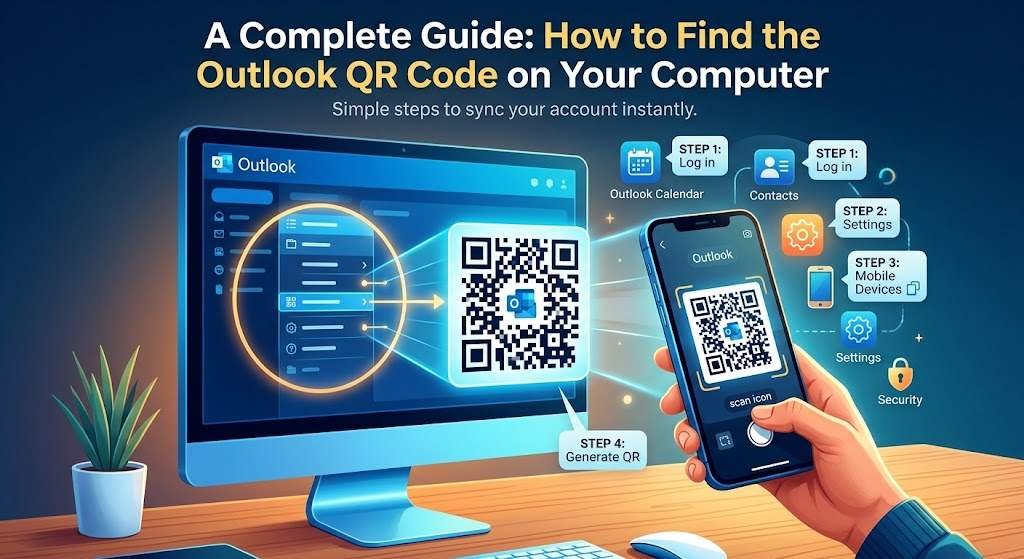
If you are wondering how to find the Outlook QR code on your computer, you may be trying to connect your Outlook account with your phone, set up two-step verification, or sign in conveniently. Microsoft account security features frequently utilize QR codes during authentication and setup workflows. However, the exact location and purpose of the QR code varies depending on whether you are using Outlook on the web, the desktop application, or the Microsoft Authenticator app.
The Outlook QR code is primarily used as part of an initial account setup process. Instead of typing a long setup key manually, you can scan the code with a smartphone to pair an authentication app to your account—reducing typing errors and speeding up the process.
This complete guide covers where to find the Outlook QR code on a computer, how to scan it using your phone, what to do if the code isn’t showing, and troubleshooting tips.
What Is the Outlook QR Code?
The Outlook QR code is associated with account setup, security authentication, or sign-in workflows rather than being a permanent icon inside your email inbox. Depending on your Microsoft account type and security configuration, you encounter this QR code when configuring a multi-factor authentication (MFA) method such as Microsoft Authenticator.
It is important to understand that there is no static, permanent QR code inside the Outlook inbox itself. The code is dynamically generated on your computer screen when a specific Microsoft security or setup workflow requires your phone to pair with your account.
Why Would You Need the Outlook QR Code?
You may need to generate and scan an Outlook QR code during setup for several reasons:
- Connecting the Microsoft Authenticator app to your personal or work account
- Enabling two-step verification (2FA / MFA)
- Adding a work or school account to an authentication app
- Completing a passwordless sign-in setup
- Authorizing a new mobile device to access your Microsoft profile
If you simply want to log into Outlook on your phone, you do not always need a QR code. In standard setups, you can sign in directly using your email credentials and password.
How to Find the Outlook QR Code on Your Computer
If you need the QR code to set up Microsoft Authenticator or multi-factor authentication, generate it through your Microsoft account security settings by following these steps:
Step 1: Open Your Web Browser
On your computer, open a browser such as Microsoft Edge, Google Chrome, or Mozilla Firefox. Go to the official Microsoft account sign-in page and log in with the email address associated with your Outlook account.
Step 2: Navigate to Account Security Settings
Once signed in, access your account’s security controls. Look for options labeled Security, Security Info, Advanced Security Options, Two-step Verification, or Verification Methods.
Step 3: Select the Authenticator App Option
Look for an option to add or configure an authenticator app. Proceed through the on-screen prompts until the system displays the generated setup QR code on your monitor.
Step 4: Open Microsoft Authenticator on Your Phone
Download and launch the Microsoft Authenticator app on your smartphone. Tap the + (add account) icon and select the appropriate account type (Personal Account or Work or School Account).
Step 5: Scan the Outlook QR Code
Select the option to Scan a QR code in the app. Point your phone camera at your computer screen so the entire QR code fits inside the scanning frame.
Step 6: Complete Verification
Follow the remaining prompts on both screens. You may be asked to approve a test push notification or enter a one-time verification code to finalize the connection.
Where to Find the QR Code Across Different Outlook Versions
Outlook on the Web
Outlook on the web does not display an authentication QR code directly inside your email inbox. To generate one, click your profile icon in the top right corner, navigate to My Microsoft Account or View Account, and locate the Security Info section.
Work or School Accounts (Microsoft Entra ID)
Work and school accounts are managed by your organization’s IT administrator. To set up an authenticator QR code, navigate to your organization’s security info setup page (typically mysignins.microsoft.com). Sign in with your work credentials and select Add sign-in method > Authenticator app.
Outlook Desktop Application
You will not find an authentication QR code inside the Outlook desktop app menus. Desktop applications rely on the centralized Microsoft account web interface to manage security settings. If you are searching through desktop email menus, switch to a web browser instead.
How to Scan the Outlook QR Code
On an Android Phone
- Open the Microsoft Authenticator app.
- Tap the + button in the top right corner.
- Select Work or school account or Personal account.
- Choose Scan QR code and align your camera with the code displayed on your computer monitor.
On an iPhone (iOS)
- Launch Microsoft Authenticator.
- Tap + to add a new account.
- Tap Work or school account or Other (Google, Facebook, etc.).
- Select Scan QR code, grant camera permissions if prompted, and frame the QR code on your monitor.
Troubleshooting QR Code Issues
What If the Outlook QR Code Is Not Showing?
- Existing Method: Your account may already have an authenticator app paired. Check your existing listed verification methods.
- Account Mismatch: Verify you are logged into the correct Microsoft account on your browser.
- Admin Restrictions: For work or school accounts, your IT administrator may restrict or require specific two-factor authentication methods.
- Outdated Page: Refresh the security setup page or clear your browser cache if the setup wizard fails to load the image.
What If Your Phone Cannot Scan the QR Code?
- Adjust Screen Brightness: Increase your computer monitor brightness to ensure contrast.
- Reduce Glare: Angle your phone or monitor to avoid overhead light reflections on the screen.
- Clean Camera Lens: Wipe away smudges from your smartphone camera lens.
- Adjust Distance: Move your phone closer or further away until the camera focuses sharply.
- Use Manual Entry: Most setup screens provide a alphanumeric Secret Key or code below the QR code that can be typed manually into the Authenticator app.
Security Best Practices When Using QR Codes
- Only Scan Trusted Codes: Never scan authentication QR codes from unsolicited emails, third-party websites, or unknown sources.
- Never Share QR Codes: An authentication QR code grants access to your account setup. Never take a screenshot of a setup QR code or send it to anyone.
- Verify URL Authenticity: Ensure the website address in your browser bar is an official Microsoft domain (such as
microsoft.comorlive.com) before logging in. - Keep Authenticator Updated: Maintain the latest version of the Microsoft Authenticator app and your phone’s operating system.
- Secure Your Device: Ensure your smartphone is protected with a strong PIN, passcode, or biometric lock (Face ID/Fingerprint).
Frequently Asked Questions
Where can I find the Outlook QR code on my computer?
Navigating directly to your email inbox will not display a QR code. Instead, sign into your Microsoft account via a browser, go to Security Settings, and start the setup process for an Authenticator App.
Is there a QR code inside the Outlook desktop app?
No. The desktop app handles email, calendars, and tasks. Account-level security settings and QR code generation are managed through Microsoft’s online security portal.
Can I create my own Outlook QR code?
If you want to share a non-sensitive link (like an email contact address or a link to a shared web calendar), you can generate a standard QR code using any free online QR code generator. However, this is separate from an official account authentication QR code.
What should I do if my QR code expires?
Setup QR codes are time-sensitive for security reasons. If the code fails to scan or expires, refresh the web browser page or restart the “Add Method” process to generate a fresh QR code.
Conclusion:
Managing your account security is straightforward once you know where to look. By accessing your Microsoft Security Settings through a web browser, you can quickly generate, scan, and pair your phone for a secure, passwordless login experience.