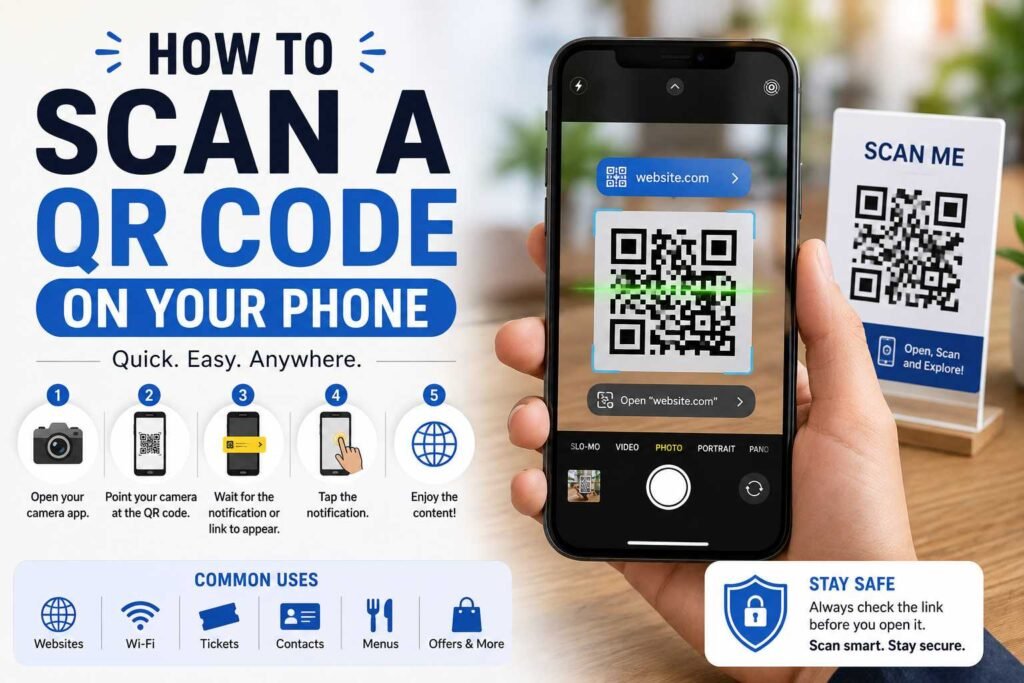
Learning how to scan a QR code on your phone makes daily life faster and more convenient. Today, how to scan a QR code on your phone is an essential skill, whether you are accessing restaurant menus, website links, event tickets, mobile payments, Wi-Fi networks, or product details. Fortunately, modern smartphones can recognize these codes instantly without requiring third-party software.
Whether you use Android or iOS, mastering how to scan a QR code on your phone typically takes just a few seconds. Simply open your camera, point it at the pattern, and tap the resulting pop-up link.
This comprehensive guide covers built-in camera scanning, device-specific steps, image-based scanning, troubleshooting tips, and essential security precautions.
What Is a QR Code and How Does It Work?
A Quick Response (QR) code is a two-dimensional matrix barcode that stores encoded digital data within a square grid of black and white pixels.
+--------------------------------------------------------------------------+
|                        HOW QR CODES WORK                                 |
+--------------------------------------------------------------------------+
|  1. OPTICAL CAPTURE  --> Camera detects alignment squares & pixel data   |
|  2. DATA DECODING    --> OS converts patterns into URLs/text/credentials  |
|  3. ACTION PROMPT    --> Phone displays actionable pop-up notification   |
+--------------------------------------------------------------------------+
Unlike traditional linear barcodes that only read horizontally, QR codes store data both vertically and horizontally. This two-dimensional structure allows them to contain significantly more information, such as web URLs, vCards, Wi-Fi login credentials, or payment keys.
How to Scan a QR Code on Your Phone Using the Camera
For most modern smartphones, the default Camera app is all you need:
- Open the Camera: Launch the native Camera app from your home screen or lock screen.
- Frame the Code: Frame the QR code clearly in the center of your screen.
- Hold Steady: Hold the camera still for 1–2 seconds to allow autofocus to lock on.
- Tap the Notification: Tap the URL banner or pop-up notification that appears on screen.
Tip: You do not need to press the shutter button or take a picture; your phone reads the code directly from the live preview.
Scanning on Specific Operating Systems
How to Scan a QR Code on an Android Phone
Most Android devices running recent OS versions handle QR recognition natively through the primary camera view.
- Via Camera App: Open the Camera, point it at the matrix, and wait for the action link to pop up.
- Via Quick Settings: Swipe down twice from the top of your screen to open Quick Settings and tap the Scan QR code tile.
How to Scan a QR Code on a Samsung Phone
Samsung Galaxy devices offer seamless integration across multiple built-in tools:
- Camera Viewfinder: Point the camera at the code to trigger an immediate web preview.
- Samsung Internet / Quick Toggle: Use the Scan QR code toggle in the Quick Panel for direct browser redirection.
How to Scan a QR Code on an iPhone
Apple integrates automatic scanning directly into iOS:
- Native Camera: Open the Camera app on photo mode, center the code, and tap the yellow banner link.
- Control Center Code Scanner: Add the dedicated Code Scanner tool via Settings > Control Center for rapid access without saving photo metadata.
Scanning Methods & Compatibility Overview
| Method / Platform | Built-in Tool | How to Access | Best Used For |
| Android (Standard) | Native Camera / Quick Tile | Open Camera or swipe down Quick Settings | Everyday physical codes, menus, signage |
| Samsung Galaxy | Camera / Quick Panel | Open Camera or tap Quick Panel toggle | Instant browser links & local Wi-Fi |
| iPhone (iOS) | Camera / Code Scanner | Open Camera or launch via Control Center | Quick action prompts, app clips |
| Google Lens | Google Assistant / Lens App | Tap Lens icon in search bar or camera | Complex codes, translated text |
| Photos / Screenshots | Live Text / Google Lens | Open image in Photos gallery app | QR codes saved inside photo library |
How to Scan a QR Code From an Image or Screenshot
When you receive a QR code via email, text, or social media, you can read it directly from your device’s photo gallery:
- iPhone (iOS 15+): Open the screenshot in the Photos app, tap the Live Text icon in the bottom corner, or long-press directly on the QR code inside the image to trigger the URL menu.
- Android (Google Lens): Open the image in Google Photos, tap the Lens button at the bottom, and select the highlighted QR region to open the embedded link.
Troubleshooting: What to Do When Scanning Fails
If your smartphone camera refuses to read a QR code, systematically check these common physical and technical fixes:
- Clean the Camera Lens: Smudges and fingerprints prevent the camera sensor from focusing on sharp pixel edges.
- Adjust Lighting & Glare: Dark environments or excessive reflections on glossy surfaces block pixel detection. Turn on your flashlight or shield the glare.
- Maintain Proper Distance: Keep your device 6–12 inches away. Holding the phone too close prevents the lens from focusing.
- Increase Screen Brightness: If you are reading a code off another monitor or phone screen, turn that display’s brightness up to 100%.
- Check Camera Settings: Verify that options like Scan QR codes or Google Lens suggestions are toggled ON in your camera settings menu.
Essential QR Code Safety Tips
Knowing how to scan a QR code on your phone safely is just as vital as knowing the mechanical steps. Because QR codes cannot be read visually by humans, scammers sometimes use “quishing” (QR phishing) by pasting malicious code stickers over legitimate public displays.
- Inspect Destination URLs: Always read the pop-up domain name carefully before tapping it. Look out for typosquatting or strange redirects.
- Never Share Sensitive Data: Legitimate QR codes rarely ask for personal passwords, banking details, or full credit card numbers directly upon opening.
- Avoid Unsolicited Downloads: If scanning a code automatically prompts an app APK download, cancel the operation immediately.
- Verify Physical Stickers: At restaurants or parking meters, ensure the QR code is printed directly on the sign rather than being a suspicious sticker placed over the original.
Frequently Asked Questions
How do I scan a QR code on my phone without an app?
Simply launch your built-in Camera app, point it steady at the code, and tap the action banner that appears on screen.
Why won’t my phone camera read QR codes?
Common causes include a dirty lens, poor lighting, glare on screens, being too close, or having the “Scan QR Codes” toggle turned off in camera settings.
Can I scan a QR code saved in my photo gallery?
Yes. On iPhones, open the image in Photos and long-press the QR code using Live Text. On Android, open the image in Google Photos and tap Google Lens.
Is it safe to connect to Wi-Fi using a QR code?
Yes, provided the code comes from a trusted source (such as your home router or a verified business front desk). Avoid scanning public Wi-Fi codes from unverified stickers.
Conclusion:
Mastering how to scan a QR code on your phone unlocks quick access to digital menus, event passes, and wireless networks. By using your phone’s native camera or gallery tools and staying alert to destination links, you can navigate these digital shortcuts quickly and securely.