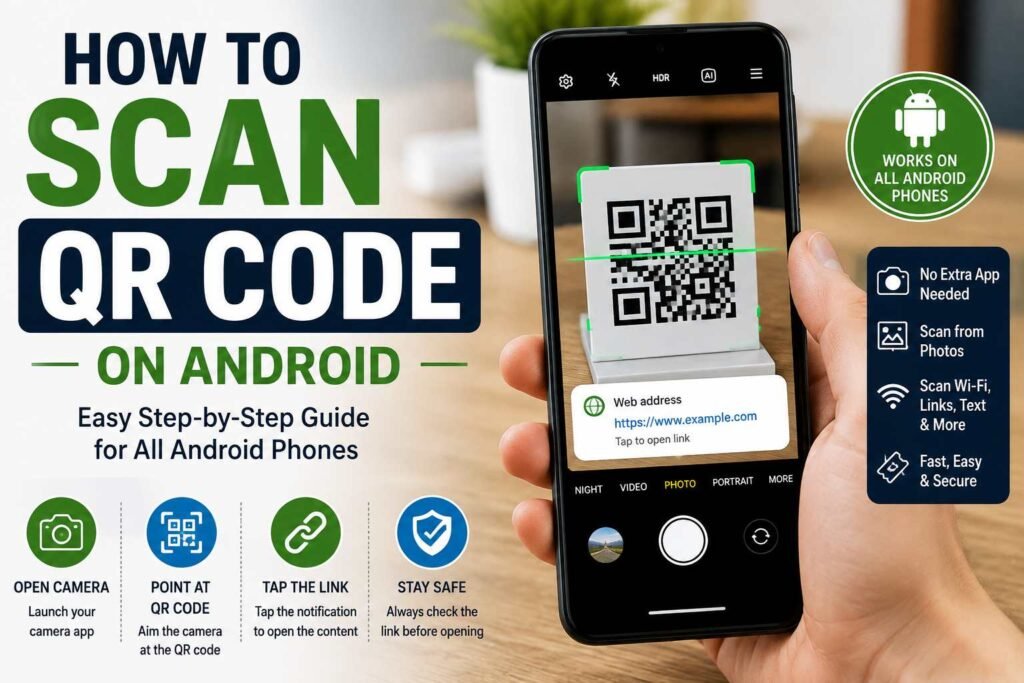
Learning how to scan a QR code on Android can make your daily life much easier. QR codes are used for lots of things like websites, restaurant menus, payments, event tickets, Wi-Fi access, product information, contact details, and many other things. The good news is that new Android phones can scan QR codes without needing a separate app.
Depending on your phone model Android version and camera app, you may be able to scan a QR code by opening your camera and pointing it at the code. Other phones may use Google Lens, a quick settings shortcut or a dedicated QR scanner. If one method does not work, there are other easy options to try.
This guide explains how to scan QR codes on Android phones, including Samsung Galaxy, Google Pixel, and other Android devices. You will also learn how to scan QR codes from pictures, scan Wi-Fi codes, troubleshoot scanning problems, and use QR codes safely.
What Is a QR Code?
A QR code is a kind of barcode that can store information in a way that machines can read. When you scan it with a phone, it can take you to a website, show you text, open an app, give you contact information, connect to Wi-Fi or do something else that it is supposed to do.
QR codes are convenient because you do not have to type in website addresses. Instead, you can just point your phone at the code. Follow the information on the screen.
You can find QR codes on restaurant tables, posters, business cards, product packaging, advertisements, tickets, receipts, signs, and websites.
How to Scan a QR Code on Android Using the Camera
The way to scan a QR code on many Android phones is to use the built-in camera.
Step 1: Open Your Camera App
Unlock your Android phone and open the Camera app.
You usually do not need to take a picture. The camera just needs to recognize the QR code.
Step 2: Point the Camera at the QR Code
Hold your phone so the whole QR code is inside the camera view.
Keep your phone steady. Make sure there is enough light for the code to be visible.
Step 3: Wait for Recognition
Your phone may automatically recognize the QR code. A notification, link or pop-up should appear on the screen.
Tap the notification if you want to open the information.
Step 4: Check the Destination
Before you open a website, look carefully at the address that is shown. If the QR code is from someone you do not know, make sure the destination looks legitimate.
This simple process is usually the way to scan a QR code on compatible Android devices.
How to Scan a QR Code on Android With Google Lens
Google Lens is another option. It can identify objects, text, images, and QR codes.
To use Google Lens, open the Camera app if Lens is part of it. Look for the Lens icon, which’s usually a small camera or multicolored Lens symbol.
Point the camera at the QR code. Let Lens identify it. When the QR code is recognized, the related link or information should appear.
On some phones, Google Lens can also be opened separately through the Google app.
If your regular camera does not recognize a QR code automatically, Lens is one of the alternatives to try.
How to Scan a QR Code on Samsung Galaxy Phones
Samsung Galaxy phones may have built-in QR scanning through the Camera app or quick settings.
Open the Camera app. Point it at the QR code. If QR scanning is enabled and supported on your device, a notification should appear.
Some Samsung devices also have a QR scanner through the Quick Settings panel. Swipe down from the top of the screen. Look for a QR-related option if it is available.
If you cannot find it, use the Camera app or Google Lens instead.
Samsung devices can be different depending on their model and software version. The exact menu names and locations may vary.
How to Scan a QR Code on Google Pixel
Google Pixel phones usually have QR recognition through the camera.
Open the Camera app. Point it at the QR code. Keep the code visible and steady for a moment.
If the phone recognizes it a notification or link should appear. Tap it to continue.
If automatic recognition does not happen, Google Lens can provide another way to identify the QR code.
Make sure your camera lens is clean and the QR code is clearly visible. Poor lighting or too much distance can make recognition more difficult.
How to Scan a QR Code From a Picture
Sometimes the QR code is not right in front of you. It may be in a screenshot, saved photo, email, social media post or another image.
In this situation, you can often use Google Photos and Google Lens.
Open the image with the QR code in Google Photos. Look for the Google Lens option. Select it.
Lens can analyze the image. Identify the QR code. If the code has a website or other supported information, an action should appear.
This is particularly useful when someone sends you a QR code through a messaging app, and you do not have another device to display it.
How to Scan a QR Code From a Screenshot
If you take a screenshot of a QR code, you can usually analyze the screenshot of trying to point your camera at your own phone.
Open the screenshot in your gallery or Google Photos. Select the Lens option if it is available.
Google Lens will examine the image. May recognize the QR code.
If the QR code is small, crop the image first. A larger, clearer QR code can make recognition easier.
Avoid editing the code in a way that distorts its patterns because QR scanners need enough of the code to identify it accurately.
How to Scan a QR Code Without an App
Many Android users wonder whether they need to download a QR scanner app.
In some cases, the answer is no.
New Android phones often include QR scanning through the camera, Google Lens, or built-in system features. Before you install a third-party scanner, check whether your phone already supports the function.
Using built-in tools can also reduce the number of apps that have access to your camera or other permissions.
If your device does not recognize QR codes and does not offer a built-in scanner, you can consider a reputable QR scanning app. Download apps from trusted sources and review their permissions before installation.
How to Scan a QR Code for Wi-Fi
QR codes can make connecting to Wi-Fi much easier. A compatible Wi-Fi QR code can have the network name and password.
When you scan the code with your Android phone, your device may show an option to connect to the network.
The exact process varies by Android version and manufacturer. In some cases, the phone will show a Wi-Fi connection prompt after recognizing the code.
This method can be useful when friends or guests need to access a home or office network without typing a password.
Always make sure the Wi-Fi QR code comes from someone you trust before you connect.
How to Scan a QR Code for a Website
QR codes are often used to open websites.
Point your Android camera at the code. Wait for the notification. The phone should show the website address or an option to open it.
Before you tap the link, look at the domain name. Be careful if the address looks suspicious, has spelling or does not match the organization that provided the QR code.
A QR code itself does not guarantee that the destination is safe. It is a way of encoding information.
How to Scan QR Codes for Payments
QR codes are widely used for digital payments. Depending on your country, bank, and payment service, you may be able to scan a merchant’s code through a supported payment app.
Open the payment app. Select its QR scanning feature if required. Point the camera at the merchant’s QR code. Follow the instructions on the app.
Before you confirm a payment, carefully verify the recipient, amount, and transaction details.
Never assume a QR code is trustworthy just because it appears in a prominent location. Always confirm payment information before you authorize a transaction.
How to Scan QR Codes From Your Computer Screen
You do not always need a printed QR code. You can scan one that is displayed on a computer, tablet, television or another screen.
Open your Android camera. Point it at the QR code on the screen.
Adjust your phone’s distance until the code is clearly visible. If the computer screen is very bright, changing the viewing angle slightly can reduce glare.
If automatic recognition does not work, take a screenshot of the QR code on the computer and transfer or access the image on your Android phone. You can then try Google Lens.
How to Scan a QR Code From a Website
If you see a QR code while browsing on your Android phone, scanning it directly with the phone can be difficult because the camera and QR code are on the same screen.
Instead, look for the destination link or other information provided next to the code.
If you specifically need to decode the QR image, you can. Screenshot it and then open the image using Google Photos or another compatible Lens-enabled tool.
This approach is more practical than trying to point your camera at your phone’s display.
Why Is My Android Phone Not Scanning QR Codes?
If your phone does not recognize a QR code, do not think that the camera is broken. There are simple things that can cause problems when you try to scan a QR code.
The QR code is too small
You need to move to the QR code or make it bigger if you are scanning a picture of it.
The camera lens is
Fingerprints and dust can make it hard to see the QR code clearly. You should clean the lens gently with a cloth.
The lighting is not good
You need to move to a place or make the light better around the QR code.
The QR code is damaged
If a QR code is missing some parts or is hard to see it can be hard to scan.
The phone is moving
You need to hold the phone for a few seconds.
The camera does not support scanning
You can try using Google Lens or another scanning feature that is built into your phone.
The QR code does not have enough contrast
QR codes work best when the pattern is easy to see against the background. If the QR code is fancy or printed poorly, it can be hard to recognize.
How to make QR code scanning better
When you are trying to learn how to scan a QR code on your Android phone, small changes can make a difference.
First, you need to hold the phone at a distance. If you are too close, the camera might have trouble focusing on the QR code.
Second, you need to keep the QR code in the middle of the screen. Make sure all four corners are visible if you can.
Third, you need to avoid glare. If the QR code is on a surface, you need to move the phone a little to the side to reduce reflections.
Fourth, you need to clean the camera lens.
Finally, you need to give the scanner a second. Some phones can recognize QR codes away but others might need you to hold the camera still for a little longer.
Are QR codes to scan?
QR codes themselves are not bad. The information they lead to can be harmful.
A QR code can have a website address, text, contact information, Wi-Fi details or other data. If someone creates a QR code that goes to a website, scanning it can take you to a bad place.
So you need to treat QR codes like links.
Before you enter passwords, payment information or other sensitive details, you need to check the website address
You need to be careful with QR codes you do not recognize, especially if they come through messages, emails, stickers, posters or other sources you do not know.
QR code safety tips for Android users
You need to follow these safety rules when you scan QR codes:
- Check where the QR code is taking you before you open it.
- Be careful with QR codes you do not recognize.
- Do not enter information on websites that look suspicious.
- Check payment details before you confirm a transaction.
- Keep your Android phone and apps up to date.
- Do not install QR scanner apps that you do not need.
- Review the permissions that apps ask for before you install them.
- Use trusted sources for QR codes that have to do with Wi-Fi or payments.
- Look for domain names or spelling mistakes.
- Leave the website if it is acting strangely.
You should think of a QR code as a shortcut, not as a guarantee that the destination is safe.
Do you need a QR code scanner app?
For Android users, a separate QR scanner app is not necessary. The phone’s camera or Google Lens might already have everything you need.
Third-party apps can be useful on phones that do not have built-in scanning features.. Downloading apps you do not need can create more privacy and security problems.
If you do choose to use an app, pick one from a developer and check its ratings, update history, privacy information, and the permissions it asks for.
Avoid apps that ask for access to information they do not need for QR scanning.
How to scan a QR code on Android from Google Photos
Google Photos can be very useful when the QR code is in a picture.
Open Google. Choose the picture with the QR code. Tap the Lens icon if you see it.
The app will look at the picture. Try to find the QR code. If it finds a link or other supported action, it will show up on the screen.
This way is convenient because you can scan QR codes that you saved before of needing the physical QR code in front of you.
How to scan a QR code on Android with Quick Settings
Some Android phones have a QR scanner shortcut in the Quick Settings panel.
Swipe down from the top of the screen to open Quick Settings. Look for an option that says QR Scanner, Scan QR Code or something like that.
If you do not see it expand the panel. Edit the Quick Settings buttons to check if the scanner is available.
The exact option depends on your phone and Android version.
If your phone does not have a QR shortcut, the camera or Google Lens is still an option.
How to scan a QR code on Android using a third-party scanner
If you do not have built-in tools, a third-party scanner can help.
Before you install one, make sure it is from a developer. Read the app’s permission requests. Avoid apps that ask for too much access.
After you install it open the scanner. Give it permission to use the camera when it asks. Point the camera at the QR code. Wait for the app to recognize it.
Do not install QR scanner apps just because the first one does not work. Try adjusting the lighting, distance, and camera position
Common QR scanning mistakes
There are a few mistakes that can make QR scanning harder.
One is holding the phone close to the QR code. Another is moving the phone around while waiting for it to recognize the code.
Some people also cover part of the QR code with their fingers. Make sure the whole QR code is visible.
Poor lighting is another problem. If you can avoid shadows and reflections.
Finally, do not click on every link that appears after scanning away. Take a moment to check where it is taking you.
Benefits of using QR codes on Android
QR codes save time because you do not have to type information in manually.
They can also reduce errors when you are entering website addresses, passwords, contact details or other information.
For businesses, QR codes can provide a way to connect customers with menus, websites, promotions, reviews, social media pages, and digital resources.
For consumers, they offer access to information with just a smartphone camera.
As Android phones get cameras and image-recognition features, QR scanning has become easier.
How businesses can use QR codes
Businesses can use QR codes in practical ways. Restaurants can put them on tables for menus. Retail stores can use them for product information or promotions. Events can use QR codes for ticket verification.
Businesses can also put QR codes on printed marketing materials, packaging, business cards, posters, brochures, and signs.
The QR code should always lead to a mobile-friendly destination. It should also be big enough and clear enough for customers to scan easily.
A QR code that is too small, poorly printed or in a hard-to-reach place can be frustrating of convenient.
Tips for creating a QR code
If you are creating QR codes for others to scan, you need to think about usability.
Use contrast between the QR pattern and its background. Avoid putting images over the code unless you have tested it.
Leave blank space around the QR code, which is called the quiet zone. This helps scanning systems tell the code apart from the surrounding content.
Test the code on Android phones before you publish it.
Also test the printed version instead of just relying on the digital preview. Printing, scaling, and paper quality can affect how well the QR code can be read.
Frequently Asked Questions
How do I scan a QR code on Android without an app?
Many modern Android phones can scan QR codes directly through the Camera app or Google Lens. Open the camera and point it at the QR code. Wait for a notification or link to appear.
Why will not my Android camera scan a QR code?
The problem might be caused by lighting, a dirty camera lens, an unclear QR code, movement or lack of built-in QR recognition. Try Google. Improve the camera conditions.
Can I scan a QR code from a screenshot?
Yes. Open the screenshot in Google Photos. Use Google Lens if it is available. Lens can often recognize the QR code from the saved image.
Can Android scan QR codes from another phone?
Yes. Display the QR code on the phone and point your Android camera at it. Make sure the screen is bright and the whole QR code is visible.
Do I need Google Lens to scan QR codes?
No. Some Android phones can recognize QR codes directly through their camera. Google Lens is another convenient option.
Can I scan a QR code for Wi-Fi?
Yes. Compatible Android devices can often recognize Wi-Fi QR codes. Give you the option to connect to the network.
Are QR code scanner apps
Some are legitimate. Not every scanner app is trustworthy. Prefer built-in Android features or applications and review permissions before installing third-party software.
Can a QR code steal my information?
A QR code itself does not automatically steal information. It can take you to a malicious or fake website. Always check the destination before you enter information.
How far away should I hold my phone from a QR code?
There is no single distance that works for every phone and QR code. Start an inch away and adjust until the camera can clearly focus on the whole QR code.
What is the easiest way to scan a QR code on Android?
You can use the Camera app or Google Lens. Just open the camera and point it at the QR code. Wait for a notification or link to appear.
To scan a QR code on your phone, you can usually just open the Camera app. Point it at the QR code. This is the way to do it. If that does not work, you can try using Google Lens or a built-in QR scanner.
Conclusion:
Learning how to scan a QR code on Android can really save you time. Make it easier to access Wi-Fi networks, digital menus, tickets, payment services, and other information. Most of the time, you can just use your phone’s camera app. Point it at the QR code.
If your phone does not automatically scan the QR code, you can try using Google Lens, Google Photos, Quick Settings,s or a reputable third-party scanner. The steps might be a little different depending on what version of Android you have and what kind of phone you use. The basic idea is the same.
Remember to be careful when you scan a QR code on Android. Before you open a link that was made by a QR code, make sure you know where it is going to take you. Do not put in any information if the website looks suspicious. If you are careful and use the way to scan QR codes, on Android you can use QR codes quickly and safely.