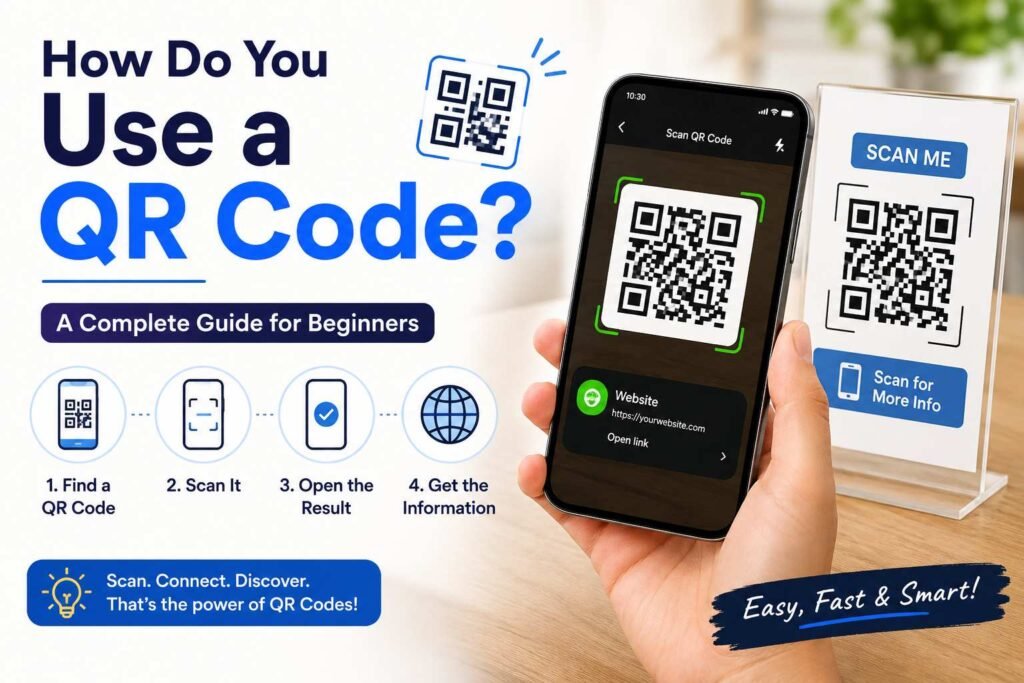
If you have ever wondered how to use a QR code, the good news is that the process is usually quick and simple. QR codes are scannable patterns that can connect your phone to digital information such as websites, menus, payment pages, contact details, Wi-Fi networks, apps, forms, and more. In most cases, all you need is a smartphone with a camera.
QR codes have become a part of everyday life. Restaurants use them for menus, businesses use them for promotions, stores use them for product information, and individuals use them to share links and contact information. Instead of typing a long web address, you can simply scan the code and let your phone recognize the information.
This guide explains how QR codes work, how to scan them on various devices, what happens after scanning, and how to use QR codes safely.
What Is a QR Code?
A QR code, short for Quick Response code, is a two-dimensional barcode designed to store and provide access to information.
Unlike traditional barcodes that generally store information in one direction, QR codes use patterns across both horizontal and vertical dimensions. This allows them to store various types of information.
A QR code can point to:
- Website URLs
- Text
- Contact information
- Email addresses
- Phone numbers
- Wi-Fi credentials
- Digital forms
- Event information
- App download pages
- Payment information
- Social media profiles
- Business locations
When you scan a QR code, your device analyzes the pattern and identifies the information encoded within it.
How to Scan a QR Code on Your Device
For most people, the easiest way to use a QR code is using your phone’s built-in camera. Modern smartphones commonly recognize QR codes directly through their native camera applications.
General Steps for Scanning
- Open Your Camera: Open the camera app on your smartphone. You usually do not need to take a photograph—simply point the camera toward the code.
- Position the QR Code: Hold your phone so the entire QR code appears clearly within the camera view. Keep the phone steady and avoid covering any part of the code.
- Wait for Recognition: Your phone will automatically analyze the pattern. A notification, banner, link, or pop-up will appear on the screen.
- Tap the Notification: If the QR code contains a website address, tapping the notification will open the website in your browser.
- Review the Destination: Before entering passwords, payment information, or personal details, make sure you recognize and trust the destination.
Scanning on iPhone
iPhones can scan QR codes directly through the built-in Camera app:
- Open the Camera app.
- Point it toward the QR code.
- Tap the notification banner that appears at the top or center of the screen.
If the camera does not recognize the code, check that the lens is clean, lighting is adequate, or use the dedicated Code Scanner tool available in the iOS Control Center.
Scanning on Android
Many Android smartphones scan QR codes directly using the built-in camera or integrated tools:
- Open your camera app.
- Point it at the QR code.
- Tap the notification or pop-up link to continue.
The exact interface can differ between Android manufacturers. Some phones may provide a QR scanning option through quick settings, Google Lens, or an integrated scanner inside the camera mode menu.
Do You Need an App to Scan a QR Code?
Usually, you do not need a third-party QR code scanning app. Many modern smartphones recognize QR codes through their built-in camera or native system tools.
Older devices may require a scanner app, but it is worth checking your phone’s existing features first. If you decide to install a third-party scanner:
- Download it only from official app stores (Apple App Store or Google Play Store).
- Review its required permissions before using it.
- Avoid installing applications simply because a scanned QR code tells you to do so.
How to Scan a QR Code From an Image or Screenshot
You may sometimes receive a QR code as a screenshot, photograph, email attachment, or social media image. You do not need a second phone to scan an image on your screen.
- On iPhone: Open the image in your Photos app. Tap and hold the QR code directly within the photo, or tap the Live Text / detected content icon in the bottom corner to open the link.
- On Android: Open the image in your gallery or Google Photos. Tap the Google Lens icon to identify the QR code embedded in the picture.
Common Everyday Uses for QR Codes
1. Opening Websites
Businesses frequently use QR codes on flyers, posters, and packaging so customers can open website URLs without typing long addresses manually.
2. Connecting to Wi-Fi
A Wi-Fi QR code contains the network name (SSID) and password. Scanning it allows compatible devices to join the wireless network without manually typing the password.
3. Making Payments
QR code payments are common in retail and dining. The process typically involves opening a supported payment app, scanning the merchant’s QR code, checking the amount, and confirming the transaction.
4. Viewing Restaurant Menus
Restaurants use QR codes placed on tables to direct diners to digital menus, online ordering systems, reservations, or payment portals.
5. Saving Contact Information (vCards)
Scanning a vCard QR code on a business card or event badge allows you to import names, phone numbers, and email addresses directly into your phone’s contacts.
6. Filling Out Google Forms & Surveys
Organizers, schools, and businesses use QR codes to link directly to online forms, surveys, or registration pages.
7. Downloading Apps
QR codes on promotional material can route users directly to an app’s store listing on the App Store or Google Play Store for quick installation.
Scanning from Printed Materials vs. Digital Screens
- Printed Materials: QR codes are printed on business cards, brochures, product packaging, posters, receipts, and signs. Ensure good lighting and hold your camera far enough away to focus clearly on the full pattern.
- Digital Screens: You can scan a QR code shown on a computer, TV, tablet, or another phone. Avoid screen glare or extreme brightness by adjusting your viewing angle or distance.
What Happens After You Scan a QR Code?
Scanning a QR code executes the command stored inside the encoded data. Depending on its contents, your phone may prompt you to:
- Visit a web page
- Open a text message draft
- Save a contact card
- Dial a phone number
- Draft an email
- Open a map location
- Join a Wi-Fi network
- Process a payment request
- View an app store page
Essential QR Code Safety Tips
While QR codes themselves are safe, malicious actors can generate codes that link to phishing sites or fake payment gateways.
- Check the URL: Before opening a site, inspect the preview link to ensure the domain name and spelling are legitimate.
- Verify Payment Details: Double-check the recipient’s name and payment amount before approving any transaction.
- Beware of Physical Tampering: Check printed QR codes in public places (like parking meters or public tables) to ensure a fake sticker hasn’t been pasted over the original code.
- Avoid Downloading Unverified Apps: Only install apps through official app stores rather than direct file downloads from unknown links.
- Keep Devices Updated: Ensure your smartphone OS and mobile browser are up to date to protect against malicious web exploits.
Troubleshooting: Why Won’t My Phone Scan a QR Code?
If your camera isn’t reading a code, consider these common causes:
- Distance: You may be too close or too far away for the camera to focus.
- Lighting: The area might be too dark or have excessive screen glare.
- Dirty Lens: Smudges on your camera lens prevent recognition.
- Code Condition: The QR code may be damaged, folded, blurry, or cut off.
- Angle: Holding your camera at a steep tilt makes patterns hard to read; aim straight at the code.
- Settings: QR code scanning might be turned off in your camera app’s settings menu.
Technical Overview: How QR Codes Work
Static vs. Dynamic QR Codes
- Static QR Codes: The encoded data is fixed directly into the pattern and cannot be edited after creation. Ideal for basic text, Wi-Fi keys, or permanent URLs.
- Dynamic QR Codes: The code contains a short redirection URL that routes to the final destination. The destination link can be modified at any time without changing the physical printed pattern.
QR Codes vs. Traditional Barcodes
Traditional 1D barcodes store limited data horizontally and require specialized laser scanners (often used for retail inventory). 2D QR codes hold significantly more data vertically and horizontally, making them readable by standard smartphone camera sensors.
How to Create Your Own QR Code
Businesses and individuals can easily generate custom QR codes:
- Choose a reputable online QR code generator.
- Select your content type (URL, text, Wi-Fi details, etc.).
- Input the destination address or data.
- Generate and download the high-resolution image file.
- Test scan the code across multiple devices before printing or publishing.
Frequently Asked Questions
Do I need an internet connection to scan a QR code?
You can scan and decode plain text or contact details without internet. However, accessing websites, online forms, payment portals, or cloud data requires active Wi-Fi or mobile data.
Can I scan a QR code using a desktop computer?
Yes. You can use your webcam alongside browser extensions or specialized desktop scanner tools, though using a smartphone camera remains the easiest option.
Are QR codes free to use and scan?
Yes. Scanning QR codes with your device is completely free. Creating basic static QR codes is also free using online generators.
Conclusion:
Learning how to use a QR code is simple once you know the basic steps. In most cases, you just open your camera app, point it at the code, wait for automatic recognition, and tap the resulting link. By practicing basic safety checks—such as inspecting destination URLs before clicking—you can easily and securely take advantage of the convenience QR codes offer.
One Response