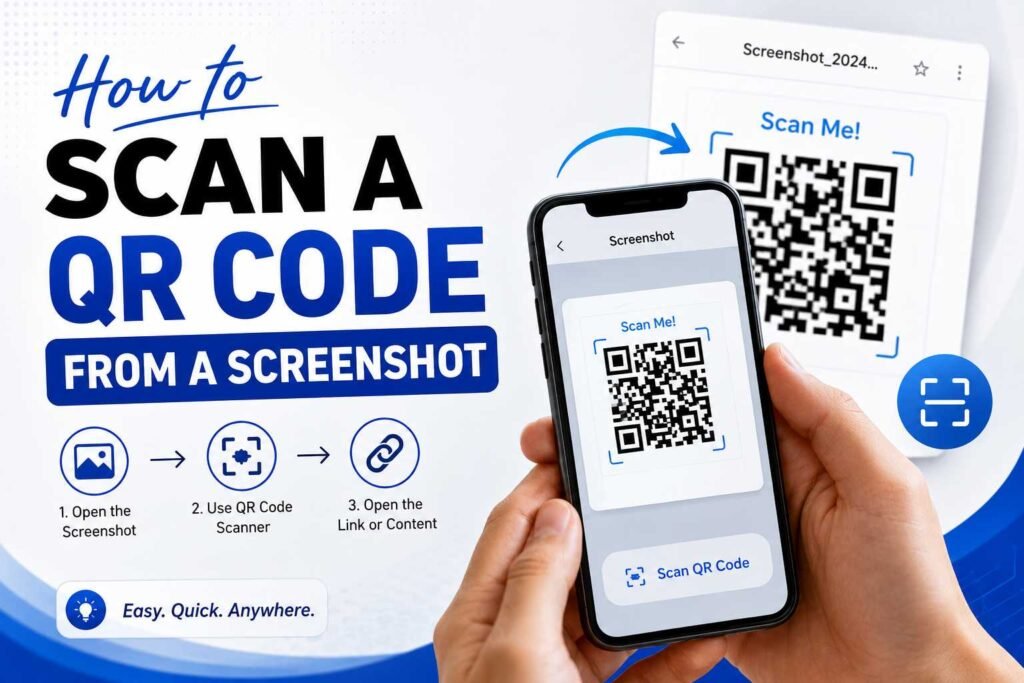
If you are wondering how to scan a QR code from a screenshot, you don’t need a second phone or an external camera to do it. Whether someone sent you a QR code through WhatsApp, you saved one from a website, or you took a screenshot of a QR code displayed on your screen, you can usually scan it directly from the saved image. Modern Android phones, iPhones, and computers offer simple ways to read QR codes from screenshots.
QR codes are used for everything from website links and payments to event tickets, Wi-Fi access, app downloads, and digital menus. Because QR codes are often shared as images, knowing how to scan a QR code from a screenshot in your gallery or photo library can save you significant time.
In this guide, we will explain reliable methods for scanning a QR code from a screenshot on Android, iPhone, Windows, and Mac, along with troubleshooting tips and security advice.
What Is a QR Code?
A QR code (short for Quick Response code) is a two-dimensional barcode that stores information in a visual pattern of black and white squares. When scanned, it performs an automated action such as opening a website, displaying contact information, connecting to Wi-Fi, or showing text.
Unlike traditional linear barcodes, QR codes store considerably more data and can be easily scanned using smartphones, tablets, and computers.
Common Places You Encounter QR Codes
- Websites and digital documents
- Product packaging
- Restaurant menus
- Business cards and resumes
- Event tickets and boarding passes
- Print and digital advertisements
- Social media profiles
- Payment screens and invoices
- Mobile applications
Because QR codes can be saved as image files, you don’t always need to point a camera lens at a physical surface to scan them.
How to Scan a QR Code From a Screenshot on Android
Android devices provide multiple ways to scan a QR code from a saved image. The exact steps vary slightly depending on your phone manufacturer and Android version.
Method 1: Use Google Lens
Google Lens is the most reliable tool for recognizing information contained within saved images, including QR codes.
- Open your phone’s Gallery or Google Photos app.
- Find and open the screenshot containing the QR code.
- Tap the Google Lens icon (often located at the bottom of the screen).
- Wait a moment for Lens to analyze the image.
- Tap the detected URL pop-up or action link to open it.
This method eliminates the need to download third-party scanner applications.
Method 2: Scan via Google Photos
If your screenshots automatically back up to Google Photos:
- Open the Google Photos app.
- Select the screenshot containing the QR code.
- Tap Lens at the bottom navigation bar.
- Google Lens will highlight the QR code and present the actionable link.
Method 3: Use Built-In Gallery Features
Many Android manufacturers (such as Samsung, Xiaomi, and OnePlus) include native QR scanning within their gallery apps:
- Open the screenshot in your default Gallery app.
- Tap the More Options menu (three dots) or the built-in Bixby Vision / Image Scanner icon.
- Select the detected QR code to trigger the action.
How to Scan a QR Code From a Screenshot on iPhone
iPhone users running modern iOS versions can scan QR codes from screenshots natively without downloading extra utility apps.
Method 1: Use the Native Photos App (Live Text)
On iPhones running iOS 15 or later, the Photos app features built-in image recognition:
- Open the Photos app.
- Tap the screenshot containing the QR code.
- Long-press directly on the QR code pattern, or tap the Live Text icon in the bottom-right corner.
- A context menu will pop up displaying the URL or action.
- Tap Open in Safari or copy the link.
Method 2: Use Google Lens on iOS
If the native Photos app fails to detect the code, you can use Google Lens via the Google app:
- Download or open the Google app on your iPhone.
- Tap the Camera/Lens icon inside the search bar.
- Grant access to your photo library and select the screenshot.
- Tap the detected link displayed on the screen.
How to Scan a QR Code From a Screenshot Without Another Phone
Learning how to scan a QR code from a screenshot removes the hassle of needing a second screen.
[ Take/Receive Screenshot ] ➔ [ Open in Photos/Gallery ] ➔ [ Activate Image Recognition/Lens ] ➔ [ Tap Detected Link ]
Instead of displaying the code on a laptop or friend’s phone to scan it with your camera, on-device image recognition processes the raw image file directly inside your operating system.
How to Scan a QR Code From a Screenshot on Windows
If you take or receive a screenshot containing a QR code on a Windows PC, you can decode it without sending it to a mobile device.
Method 1: Use the Windows Snipping Tool
Recent updates to Windows 11 include native QR code reading in the Snipping Tool:
- Open the screenshot in the Snipping Tool.
- Click the Text Actions icon at the top toolbar.
- If a QR code is detected, Windows will highlight it and allow you to copy or open the embedded link.
Method 2: Use Web-Based QR Decoders
If you are on an older Windows version:
- Save the screenshot to your desktop.
- Open a web browser and visit a secure online QR reader (such as WebQR or ScanQR).
- Upload the screenshot file.
- Copy the extracted text or link from the screen.
Note: Avoid uploading screenshots containing confidential personal data or private financial details to unknown third-party websites.
How to Scan a QR Code From a Screenshot on Mac
Mac users can extract QR code data directly within macOS:
Method 1: Live Text in macOS
- Open the screenshot using Preview or the Photos app.
- Hover your cursor over the QR code.
- If macOS detects the QR code, a small yellow icon or clickable URL preview will appear.
- Click the link to open it in Safari.
Method 2: Use Chrome Desktop
- Open the Google Chrome browser on your Mac.
- Drag and drop the screenshot image into a Chrome tab.
- Right-click the image and select Search Image with Google.
- Google Lens in the side panel will decode the QR link immediately.
Why Can’t My Phone Scan the QR Code From a Screenshot?
If your device isn’t recognizing the QR code inside your screenshot, one of the following issues may be the cause:
1. The Screenshot Is Blurry or Low-Resolution
If the screenshot was compressed during messaging, the individual black and white modules may blur together, making it unreadable for algorithms.
2. The QR Code Is Too Small
If the QR code occupies only a tiny fraction of a large screenshot, image recognition tools may skip over it.
3. Aspect Ratio Distortion
If the image was stretched, warped, or rotated unnaturally during editing, the scanner will fail to identify the alignment markers.
4. Obstructions and Overlays
Text captions, notification pop-ups, emojis, or heavy cropping can obstruct the outer corners of the QR code.
5. Low Contrast
QR codes require sharp contrast between the foreground pattern and the background. Dark mode filters or low brightness can impede scanning.
How to Improve a QR Code Screenshot Before Scanning
If your device struggles to recognize a screenshot, apply these simple fixes:
- Crop the Image: Crop out unnecessary background elements so the QR code occupies most of the frame.
- Increase Brightness & Contrast: Use your basic phone editor to boost contrast if the image looks faded.
- Keep Corner Squares Intact: Ensure the three large positioning squares in the corners of the QR code are fully visible and uncropped.
- Request the Original File: If a friend sent a heavily compressed screenshot, ask them to send the file directly as an uncompressed image or document.
Can You Scan a QR Code From a Screenshot in WhatsApp?
Yes. When someone sends you a QR code inside a WhatsApp chat:
- Tap the image in WhatsApp and save it to your device’s photo library.
- Open Google Photos (Android) or Photos (iPhone).
- Activate Google Lens or Live Text on the saved picture to extract the link.
Can You Scan a QR Code From a Screenshot Without an App?
Yes. Modern Android operating systems (via Google Lens/Photos) and iOS devices (via native Live Text) have on-device image recognition built directly into the system software. You generally do not need to download third-party scanning apps from app stores.
Security Advice: Is It Safe to Scan a QR Code From a Screenshot?
The process of decoding an image file is entirely safe. However, where the QR code redirects you carries potential security risks.
Potential Security Risks
- Phishing Sites: Fake login portals designed to steal passwords.
- Malicious Downloads: Automatic file downloads containing malware.
- Payment Frauds: Altered QR codes that direct funds to unauthorized accounts.
Security Checklist Before Clicking Links
- Inspect the Full URL: Ensure the domain matches the official website of the service you expect.
- Look for HTTPS: Verify that web addresses use secure connections.
- Verify Payment Recipients: Always double-check account names and transaction amounts before confirming financial transfers.
QR Code Screenshot vs. Camera Scanning
| Feature | Camera Scanning | Screenshot Scanning |
| Primary Requirement | Physical code or second screen | Saved image file on device |
| Speed | Instant point-and-shoot | Requires saving & opening image |
| Convenience | Ideal for physical locations (menus, posters) | Ideal for digital messaging & online shopping |
| Second Device Needed? | No | No |
Top Tips for Scanning QR Codes from Screenshots
- Crop tightly around the code to remove background noise.
- Avoid heavy filters that reduce black-and-white contrast.
- Use Google Lens as a universal fallback across both Android and iOS.
- Verify destination links before entering sensitive credentials.
- Keep your operating system updated to utilize built-in image recognition tools.
Frequently Asked Questions
Can I scan a QR code from a screenshot?
Yes. You can scan QR codes from screenshots using native gallery tools like Live Text on iOS, Google Lens on Android, or image recognition features on Windows and Mac.
How do I scan a QR code from a screenshot on iPhone?
Open the screenshot in the Photos app, long-press the QR code image, or tap the Live Text icon in the bottom corner to open the link.
How do I scan a QR code from a screenshot on Android?
Open the screenshot in Google Photos or your default Gallery app and tap the Google Lens icon to recognize and open the code.
Do I need another phone to scan a screenshot?
No. You can decode saved images directly on the same phone using built-in software.
Why won’t my screenshot QR code scan?
The image may be too small, blurry, distorted, low-contrast, or cropped incorrectly. Crop the image closer to the QR code and try again.
Can Google Lens scan QR codes from screenshots?
Yes. Google Lens analyzes saved static images to extract text, links, and QR code data.
Can I scan a QR code from a WhatsApp image?
Yes. Save the WhatsApp image to your camera roll and process it using your phone’s default gallery app or Google Lens.
Is scanning a QR code from a screenshot safe?
Decoding the image is safe, but always verify the resulting URL before logging in or entering payment information.
Can I scan a QR code from a PDF screenshot?
Yes. Take a screenshot of the PDF page containing the QR code, open the screenshot in your photos app, and run image recognition on it.
What should I do if the QR code is too small to scan?
Use your phone’s built-in image editing tools to crop out everything around the QR code, making it larger in the frame before running the scanner.
Conclusion
Knowing how to scan a QR code from a screenshot makes handling digital links, Wi-Fi details, and online documents fast and effortless. Whether you are using Android, iPhone, Windows, or Mac, built-in features like Google Lens and Live Text allow you to read QR codes directly from your gallery without needing a second device.
Remember to keep your screenshots clear, crop out unnecessary borders when codes fail to load, and always verify destination URLs for safety before submitting private information.