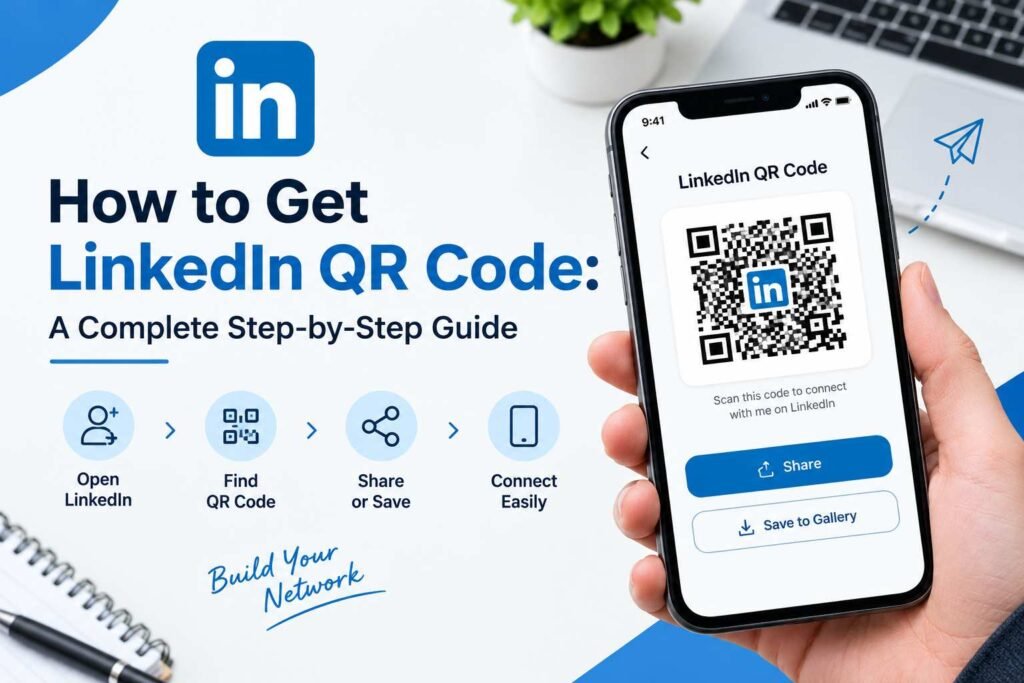
If you want to make networking faster and easier, learning how to get LinkedIn QR code can be extremely useful. A LinkedIn QR code gives people an instant way to access your profile without manually searching for your name or typing out a long URL. Whether you are attending a business conference, meeting clients, applying for jobs, or simply growing your professional network, a scannable code simplifies the entire process.
In this guide, we will explain how LinkedIn QR codes work, how to find your profile QR code, how to scan someone else’s code, and alternative ways to create one if the native option is unavailable on your device.
What Is a LinkedIn QR Code?
A LinkedIn QR code is a scannable visual pattern connected directly to a LinkedIn profile or company page. Instead of searching for a person’s name—which can often lead to multiple matching results—someone can simply point a smartphone camera at the code to open the correct profile instantly.
QR codes eliminate typos and awkward spelling requests during real-world interactions. You can easily place your LinkedIn QR code on business cards, resumes, presentations, conference materials, email signatures, and promotional materials.
Why Use a LinkedIn QR Code?
There are several strategic advantages to using a LinkedIn QR code in professional settings:
- Faster In-Person Networking: Sharing your profile becomes almost instant during events and meetings.
- Eliminates Typing Errors: Long or custom LinkedIn URLs are difficult to type manually on mobile devices. A QR code removes friction.
- Elevates Print Materials: Placing a code on business cards, resumes, or event badges connects physical items directly to your live digital resume.
- Higher Conversion Rates: People are significantly more likely to scan a quick code than to manually search for your name later.
How to Get LinkedIn QR Code on Your Phone
The fastest way to learn how to get LinkedIn QR code is through the official LinkedIn mobile application.
Step-by-Step Instructions:
- Open the LinkedIn app on your phone.
- Sign in to your account.
- Tap the Search bar at the top of the main screen.
- Look for the small QR code icon located on the right side of the search bar.
- Tap the icon, then select the My Code tab to display your personal QR code.
- Tap Save to Gallery or Share my code to export the image.
Note: LinkedIn periodically updates its mobile interface, so the exact location of the QR icon may occasionally shift between app versions.
How to Get LinkedIn QR Code on iPhone
If you are using an iOS device:
- Launch the LinkedIn app and log in.
- Tap the Search bar at the top of the home feed.
- Tap the QR Code icon inside the right edge of the search field.
- Select My Code.
- Tap Save to Photos to download a clean image file directly to your camera roll.
How to Get LinkedIn QR Code on Android
The process on Android follows the exact same workflow:
- Open the LinkedIn application.
- Tap the Search bar on the home tab.
- Select the QR Code icon.
- Choose My Code from the menu.
- Tap Save to Gallery to store the QR image on your device for future use.
How to Scan a LinkedIn QR Code
Knowing how to get LinkedIn QR code is only half the equation—you also need to know how to scan other people’s codes during networking events.
Method 1: Using the LinkedIn App
- Open LinkedIn and tap the Search bar.
- Tap the QR Code icon.
- Select the Scan tab.
- Point your camera at the other person’s code to automatically open their profile.
Method 2: Using Your Phone’s Native Camera
- Open your smartphone’s default Camera app.
- Frame the QR code in the center of the display.
- Tap the pop-up link notification that appears on the screen to view the profile.
Can You Scan a LinkedIn QR Code From a Screenshot?
Yes. If someone sends you an image or screenshot containing a LinkedIn QR code:
- In the LinkedIn App: Open the QR scanner within the app, tap Scan from photos, and select the saved screenshot from your gallery.
- Using Google Lens / iPhone Photos: Open the image in your native gallery app, long-press the QR code (iOS), or use Google Lens (Android) to extract the link.
Where to Share Your LinkedIn QR Code
Once you have generated your code, consider adding it to these key touchpoints:
- Business cards
- Resumes and CVs
- Presentation deck slides
- Conference name badges
- Portfolio websites
- Printed brochures and flyers
- Email signatures
- Tabletop banners at industry trade shows
How to Put a LinkedIn QR Code on a Business Card
Adding a QR code turns a standard business card into an interactive tool:
- Position the code cleanly on either the back of the card or alongside your contact details.
- Keep a clear border (quiet zone) around the code so camera lenses can read it properly.
- Include a short call-to-action above or below the code, such as: “Scan to connect on LinkedIn.”
- Always test a printed physical proof with multiple phone cameras before running a full print order.
How to Put a LinkedIn QR Code on a Resume
A LinkedIn QR code allows hiring managers to quickly view your full professional history, endorsements, and portfolio items.
- Placement: Place the code in the top header section alongside your name, email, and phone number.
- Sizing: Keep it compact—roughly 0.8 x 0.8 inches (2 x 2 cm) is ideal.
- Backup Link: Always print your written profile URL below the code (e.g.,
[linkedin.com/in/yourname](https://linkedin.com/in/yourname)) so recruiters on desktop devices can still access it.
How to Get LinkedIn QR Code Using a Third-Party Generator
If the built-in LinkedIn QR option is unavailable or you need a higher-resolution file for large-scale printing, you can easily generate one using your profile URL.
Step 1: Copy Your LinkedIn Profile URL
- Open LinkedIn, go to your profile page, and tap Contact Info or Share Profile.
- Select Copy Profile Link (e.g.,
[https://www.linkedin.com/in/your-username/](https://www.linkedin.com/in/your-username/)).
Step 2: Use a QR Generator
- Open any reputable online QR code generator.
- Select the URL / Website option.
- Paste your LinkedIn profile URL into the field.
- Customize the colors or frame if desired (ensure strong contrast).
- Download the high-resolution image file (PNG or SVG for printing).
Best Practices for a Better LinkedIn QR Code
To ensure your code functions seamlessly across all devices, follow these core design rules:
- Test Before Printing: Always scan the code yourself from a printed test sheet before sending items to a commercial printer.
- Maintain High Contrast: Stick to a dark pattern against a solid light background. Avoid faint pastel colors.
- Preserve the Quiet Zone: Leave empty space around all four edges of the code so scanners can recognize the boundary.
- Size Appropriately: Ensure the printed code is at least 0.8 x 0.8 inches (2 x 2 cm) for close-range reading, and significantly larger for posters or presentation slides.
Troubleshooting: Why Your LinkedIn QR Code May Not Work
If your code fails to scan properly, check for these common issues:
- Image Blurring: The file resolution is too low, causing the pixels to bleed together when printed.
- Distortion: The code was stretched non-proportionally during graphic design work.
- Insufficient Lighting or Reflection: Glossy paper or dark environments can prevent camera lenses from reading the code.
- Outdated URL: If you recently changed your custom LinkedIn handle/URL, any old third-party QR codes you created will break.
Frequently Asked Questions
Is a LinkedIn QR code free to generate?
Yes. The built-in LinkedIn mobile app QR tool is completely free to use. Generating a basic static QR code from your profile URL using third-party tools is also free.
Does a LinkedIn QR code expire?
No. Standard static QR codes pointing to your profile URL do not expire. However, if you change your custom LinkedIn username/handle, your profile URL changes, which will break any existing static QR codes.
Can I place my LinkedIn QR code on a slide during a presentation?
Yes. Adding your QR code to the final “Thank You / Q&A” slide of a presentation is an effective way to allow an entire audience to connect with you instantly.
Why can’t I find the QR code icon in my LinkedIn app?
Make sure your app is updated to the latest version via the Apple App Store or Google Play Store. The icon is located specifically within the top Search bar.
Conclusion
Learning how to get LinkedIn QR code gives you a fast, modern tool for building meaningful professional connections. Instead of waiting for people to look up your name or type out a long URL, you can present a clean, scannable code that takes them straight to your profile in seconds.
Whether you use LinkedIn’s native mobile feature or create a custom high-resolution code via an external generator, remember to test your code thoroughly before adding it to business cards, resumes, or marketing materials.
One Response