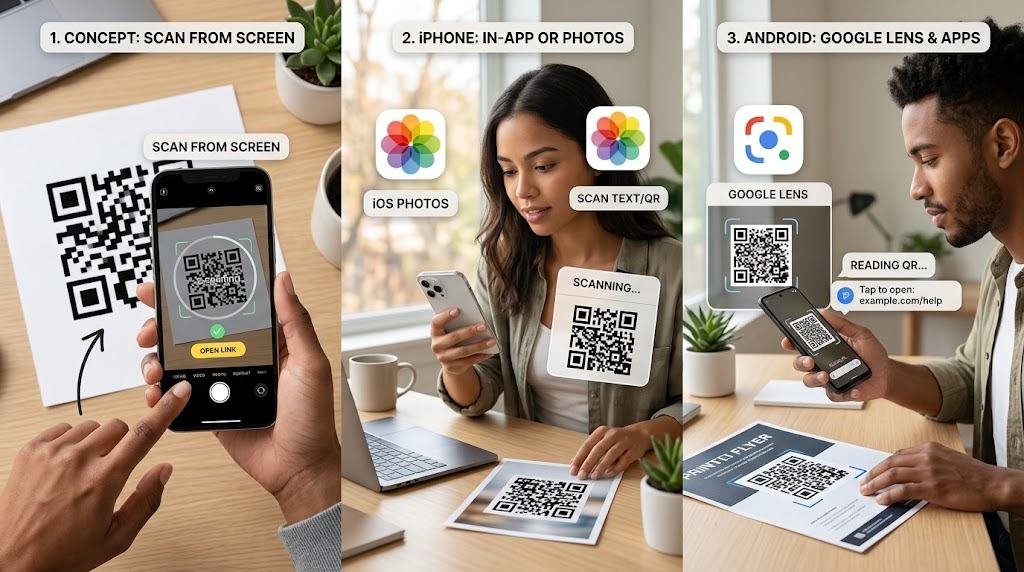
Learning how to scan a QR code from a picture is useful when someone sends you a QR code through WhatsApp, email, social media, or another app. You may also have a screenshot containing a QR code saved in your phone’s gallery and wonder how to open the information without using a second device. Fortunately, modern smartphones offer simple ways to scan QR codes directly from saved images.
QR codes can contain website links, contact information, event details, payment information, Wi-Fi credentials, app downloads, menus, and many other types of data. Normally, you point your phone’s camera at the code. However, that method does not work when the QR code is already displayed on the same phone. In that situation, you need an image-scanning feature or another QR code reader.
This guide explains practical methods for scanning a QR code from an existing image on Android phones, iPhones, computers, and other devices.
1. What Is a QR Code?
A QR code, or Quick Response code, is a two-dimensional barcode that stores information in a pattern of black and white squares. When scanned, the encoded information can be interpreted by a camera, QR scanner, or image-recognition tool.
Unlike standard barcodes, QR codes can store different types of information and can be scanned from multiple directions. They have become common in restaurants, stores, advertisements, websites, packaging, transportation, events, and digital marketing.
A QR code displayed in a photograph or screenshot works the same way as one printed on paper. The main difference is that you need software capable of recognizing the code within the saved image.
2. Platform-Specific Guides
How to Scan a QR Code From a Picture on Android
Android phones from different manufacturers may have slightly different menus and features, but Google Lens is one of the easiest options.
Method 1: Use Google Lens
Google Lens can recognize objects, text, websites, and QR codes within images. If your phone has Google Photos or Google Lens, you can usually scan a saved QR image in a few steps:
- Open the Google Photos app.
- Find the picture containing the QR code.
- Open the image.
- Tap the Google Lens icon.
- Allow Lens to analyze the image if necessary.
- Tap the detected QR code or link.
- Follow the result.
The exact appearance of the Lens button can vary depending on your Android version and device.
Google Lens is particularly useful because you do not need to print the image or use another phone. It can analyze a QR code directly from your photo library.
Method 2: Use Google Lens From the Camera or Google App
Some Android devices provide Lens through the camera or Google app.
Open the Google app and look for the Lens icon. Depending on your device, you may be able to select an existing picture from your gallery. Choose the image containing the QR code and allow Lens to analyze it.
If the code is recognized, Lens should provide a link or other relevant information.
Method 3: Use Your Phone’s Built-In Gallery
Some Android manufacturers integrate QR recognition directly into their gallery applications. Open the image and look for options such as Scan, Lens, Recognize, or a QR icon.
If your gallery does not offer this feature, Google Lens or a reputable QR scanner can be used instead.
How to Scan a QR Code From a Picture on iPhone
iPhones can also recognize QR codes in saved images. Apple’s Live Text and image-recognition features can make the process straightforward on supported iOS versions.
Method 1: Use the Photos App
To scan a QR code saved in your iPhone’s photo library:
- Open the Photos app.
- Select the picture containing the QR code.
- Make sure the QR code is clearly visible.
- Look for a detected link or QR-code interaction.
- Tap the result to open it.
Depending on your iOS version and image, you may see a link or contextual option after the phone recognizes the code.
Method 2: Use Live Text
If your iPhone supports Live Text, open the image and look for the Live Text icon or an interactive link. The system can recognize information inside photographs and screenshots.
When a QR code is detected, tapping the recognized content can provide access to the encoded link.
If nothing happens, make sure the QR code is large enough and clearly visible. You can also crop the image so that the QR code occupies more of the screen.
How to Scan a QR Code From a Picture on a Computer
You can also scan QR codes from images on a desktop or laptop computer.
If the QR code is saved as an image file, some browser-based QR readers allow you to upload the image and decode its contents. You can also use desktop applications.
When using an online QR decoder, be careful about uploading sensitive images. A QR code may contain private account links, invitations, or other data that you may not want to share with an unknown service.
For public QR codes, an image-based scanner can be convenient. For sensitive information, using a trusted local application is generally preferable.
3. Specific Apps and Image Sources
How to Scan a QR Code From a Screenshot
Screenshots are one of the most common places where people encounter QR codes. Someone may send you a QR code through a messaging app, or you may capture a QR code displayed on a website.
The easiest approach is usually to open the screenshot in Google Photos, Apple Photos, or another compatible image application and use its built-in recognition feature.
If the QR code is small, crop the screenshot first. A larger, sharper QR code gives recognition software a better chance of identifying the pattern.
Avoid editing the QR code heavily. Filters, compression, blur, or overlays can make scanning more difficult.
How to Scan a QR Code From a Picture Without Another Phone
You do not necessarily need a second phone. If the QR code is stored as an image on your device, image-recognition software can process the code directly.
For example, you could receive a QR code through WhatsApp, save it to your gallery, and then open it using Google Lens. Similarly, an iPhone user can save an image and attempt to identify the QR code through Photos.
This is especially convenient when a QR code is sent to you digitally. Instead of showing the image on one device and scanning it with another, you can analyze the image directly on your screen.
How to Scan a QR Code From a Picture on WhatsApp
Suppose a friend sends you a QR code as an image through WhatsApp. You can open the image and then use your phone’s image-recognition capabilities.
On Android, open the image in Google Photos and select Google Lens. On iPhone, open the saved image in Photos and check whether the QR code is recognized.
If WhatsApp displays the image without giving you a scanning option, saving the image to your gallery is usually the simplest solution.
How to Scan a QR Code From a Picture on Google Photos
Google Photos is a great option for Android users because Google Lens is integrated into the ecosystem.
Open Google Photos and select your QR-code image. Tap the Lens icon. Google Lens will analyze the information and identify the QR code.
If the code contains a website address, the result may appear as a clickable link. If it contains contact or text information, the result may be displayed in a different format.
Keep the image as high-resolution as possible. Higher-quality images are much easier for recognition tools to process.
How to Scan a QR Code From a Picture in a Screenshot
If you have a screenshot containing a QR code, open the screenshot in your phone’s photo application. Make sure the code is not partially hidden by notifications, text, or other graphics.
Crop the screenshot around the QR code if necessary. Then, use your phone’s image-recognition feature.
This method is helpful for QR codes that show up in social media updates, websites, digital invites, online tickets, and marketing images.
4. Troubleshooting, Safety, and Best Practices
What to Do If the QR Code Is Not Scanning
Sometimes a QR code does not scan immediately. This does not necessarily mean that the code is broken.
Check Image Quality
A blurry or pixelated image can prevent recognition. Try to find the original high-resolution image instead of a compressed copy.
Crop the QR Code
If the QR code takes up only a small part of the image, crop it closer and try again. This gives the scanner a clearer view of the code.
Increase Brightness
A dark image can make the QR pattern difficult to identify. Adjusting the brightness slightly may improve recognition.
Avoid Excessive Zoom
Digital zoom can make a QR code appear larger while reducing overall image quality. Instead, use the highest-resolution image available.
Make Sure the Entire Code Is Visible
The four corner markers and surrounding patterns are important for recognition. If part of the QR code is covered, cut off, or heavily distorted, scanning may fail.
Try Another Scanner
If your phone’s built-in tools cannot recognize the image, a reputable third-party QR scanning application may provide another option.
How to Open a QR Code From an Image Safely
Scanning a QR code is not the same as verifying that the place it leads to is safe. A QR code may look harmless, but it can take you to a dangerous or fraudulent page.
Before you click on a link, inspect the web address that appears. Check for misspellings, unexpected domain extensions, or odd symbols.
Do not give out passwords, bank details, credit card numbers, or any other private information just because a QR code sends you to a website.
If the QR code claims to be from a legitimate company, consider going to the company’s official website on your own instead of trusting a random QR link.
Can You Scan a QR Code From a Picture Without Using an App?
In many cases, yes. Newer phones often have built-in QR code reading capabilities through their camera, photo gallery, system settings, or Google Lens features.
The features available depend on the phone, operating system, and software version. If your phone does not read QR codes in saved images automatically, you might need a third-party scanner app.
Before you install an app, check if your phone already has this feature built in.
Why QR Codes Sometimes Don’t Work
A QR code can stop working for several reasons. The picture might be out of focus, the code itself might be corrupted, or the destination web page might no longer exist.
Some QR codes are dynamic. A dynamic QR code points to a destination managed by the creator, meaning the underlying link can be changed or turned off later.
A static QR code holds its information permanently in the pattern. If the website it points to goes down, scanning the code will not load the website.
Tips for Better QR Code Scanning
When trying to read a QR code that’s inside a picture, remember these tips:
- Use the highest-quality image you can get.
- Crop the picture closely around the QR code.
- Make sure the whole code is visible.
- Avoid taking pictures of other screens whenever possible.
- Remove any filters or visual effects.
- Keep the QR code clear and undistorted.
- Try using Google Lens or your phone’s built-in image reader.
- Check where the code takes you before clicking the link.
- Stay away from giving personal information on unfamiliar websites.
These simple steps can resolve most common scanning issues.
5. Frequently Asked Questions
Can I scan a QR code from a photo on my phone?
Yes. Many modern phones can read QR codes inside saved images. Android users can often use Google Lens, while iPhone users can use supported Photos and Live Text features.
Can I scan a QR code from a screenshot?
Yes. Open the screenshot in your photo or gallery app and use the QR or image-recognition feature. Cropping the screenshot can help if the code is small.
How do I scan a QR code from a picture on Android?
Open the picture in Google Photos and use Google Lens if available. Lens will analyze the image to find the QR code and decode its information.
How do I scan a QR code from a picture on iPhone?
Open the image in the Photos app and look for QR code recognition or Live Text features. Supported iPhones and iOS versions can detect links directly inside images.
Why won’t my phone scan the QR code in a picture?
The image might be fuzzy, small, dimly lit, cut off, or distorted. Try cropping closer around the code or using a different recognition tool.
Can I scan a QR code without another phone?
Yes. You can scan a QR code directly from a saved image using your phone’s built-in image recognition features. A second device is not needed.
Are QR codes from pictures safe to scan?
The QR code itself is just a method to store data, but the destination it leads to might not be trustworthy. Always verify the URL before submitting any sensitive or financial information.
Can I scan a QR code from WhatsApp?
Yes. Save the image containing the QR code to your device and use your phone’s photo recognition feature, such as Google Lens on Android or Live Text on iPhone.
Conclusion
Knowing how to scan a QR code from a picture makes it much easier to interact with QR codes shared online. Whether you have a screenshot, a picture from WhatsApp, a photo, a social media post, or a downloaded image, you can usually read the QR code without needing a second device.
Android users can rely on Google Lens and built-in gallery tools, while iPhone users can leverage image recognition in Photos. If a code fails to scan initially, improving the picture quality, cropping around the code, or using a trusted scanner app will usually fix the problem.
Importantly, remember that scanning a QR code does not guarantee the destination is safe. Always inspect the website address before interacting with it. With the right tools and a few basic precautions, scanning QR codes from saved pictures is fast, easy, and secure.
One Response