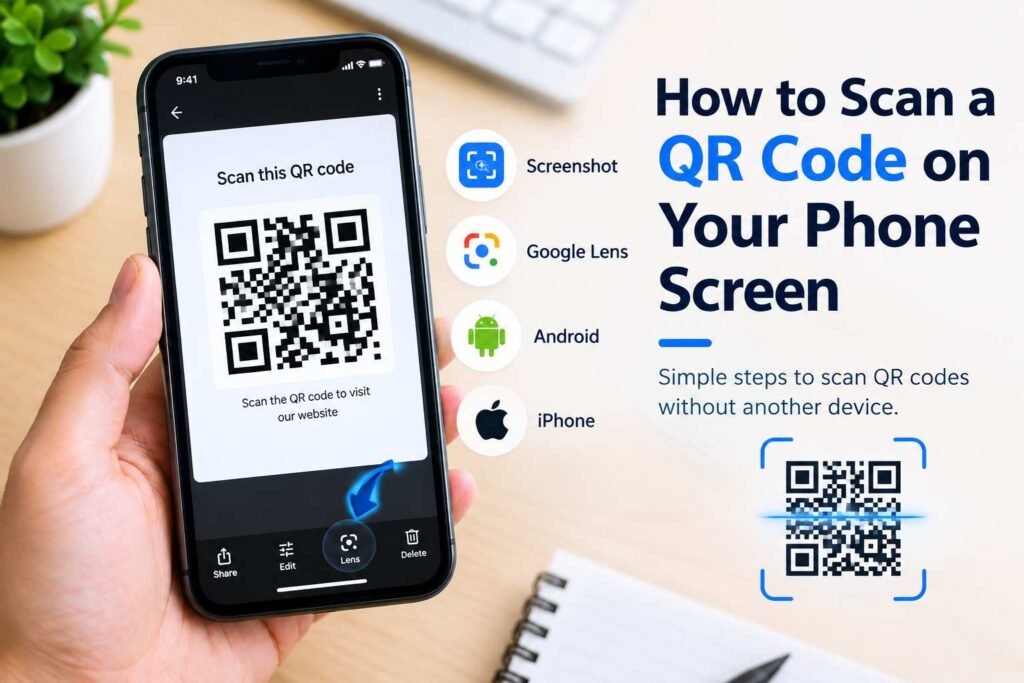
The standard way to scan a QR code is simple enough: point your phone’s camera at a piece of paper or another screen. But when the code is sitting directly on your phone screen, you run into a logical problem—you can’t point your phone’s camera at its own display.
Luckily, you don’t need to borrow a friend’s phone or print anything out. Both Android and iPhone have built-in tools that let you scan codes directly from saved images and screenshots.
The Core Concept: Camera Scanning vs. Image Recognition
To understand how this works, it helps to distinguish between two different ways your phone handles QR codes:
- Camera Scanning: Used when the code is outside your device—like on a restaurant menu, poster, product package, or computer monitor. You open your camera app and point it at the physical object.
- Image Recognition: Used when the code is already on your screen. Instead of using a live camera feed, your phone uses image-processing tools (like Google Lens or Apple’s Live Text) to read pixels from a saved photo or screenshot.
Instead of trying to capture a live view, all you need to do is capture the image once, save it, and let software read it.
How to Scan an On-Screen QR Code: The Step-by-Step Method
This universal workaround works for almost every app—whether you’re looking at a ticket in a PDF, a promo code on Instagram, a website link, or a payment request in WhatsApp.
QR Code on Screen ➔ Take Screenshot ➔ Open in Photos/Gallery ➔ Tap Lens / Scan ➔ Open Link
Step 1: Capture the Screen
Open the message, web page, or app showing the QR code. Make sure the code is completely visible, then take a standard screenshot:
- iPhone (Face ID): Press Side Button + Volume Up simultaneously.
- iPhone (Home Button): Press Side Button + Home Button simultaneously.
- Android: Press Power + Volume Down simultaneously (or swipe your palm across the display on supported models).
Step 2: Open the Image in Your Photos App
Go to your phone’s photo library and open the screenshot you just took.
Step 3: Trigger Image Scanning
On Android (Google Lens / Google Photos):
- Open the photo in Google Photos or your device’s native Gallery app.
- Tap the Lens icon (it looks like a stylized camera with a dot inside).
- Google Lens will automatically detect the square pattern and highlight it.
- Tap the pop-up URL or button overlay to execute the action.
On iPhone (iOS Live Text):
- Open the screenshot in the Photos app.
- Tap the Live Text icon in the bottom corner of the image viewer, or simply tap and hold directly on the QR code pattern.
- A contextual pop-up menu will appear directly above the code. Tap the link to open it in Safari or its corresponding app.
Quick Tips for Specific Platforms
Samsung Galaxy Devices
Samsung makes this process especially seamless. When you open a screenshot containing a QR code in the default Samsung Gallery app, you’ll often see a small yellow QR badge or a Lens button in the bottom right corner. Tap it to immediately launch the web link without needing to open third-party software.
WhatsApp, Email & Web Browsers
If someone sends you a QR code inside a chat or email attachment:
- Long-press the image to save it to your local storage, or take a quick screenshot.
- Process it through Google Photos or Apple Photos as outlined above.
- Note: In web browsers like Chrome on Android, you can often long-press an image on a webpage and tap “Search image with Google” to scan the code without even saving it to your device.
Troubleshooting: What to Do When the Code Won’t Scan
If your phone’s image scanner is failing to pick up the QR code, try these targeted fixes:
- Crop out clutter: If the QR code is a tiny box in the corner of a busy screenshot, open the screenshot, edit it to crop tightly around the QR pattern, and attempt the scan again.
- Protect the four corners: QR codes rely on three large alignment squares in the corners (and a smaller fourth inner square) to establish orientation. If your screenshot clips even one corner, the software won’t recognize it as a readable code.
- Ask for a clearer copy: High compression or extreme blurriness can corrupt the pattern modules. If the file was heavily compressed in a messaging thread, ask the sender to share it as an uncompressed document rather than an image preview.
- Boost contrast: Scanners struggle if the dark squares blend into a dark background or if an overlay lowers contrast. Crop out dark surrounding UI elements so the code stands out.
Safety First: Staying Secure When Scanning
QR codes themselves are harmless visual containers, but what they link to can be dangerous. Scammers frequently use them for “quishing” (QR phishing) to hide deceptive links behind a legitimate-looking image.
Before tapping through on any scanned result, review these safety checks:
- Inspect the URL preview: Always read the full web address before tapping. Be skeptical if the domain uses strange misspellings, excessive dashes, or weird extensions (e.g.,
.xyzor.topinstead of.comor.org). - Treat payment requests with extra care: If a QR code leads to a money transfer, pause and double-check the recipient’s name, destination account, and requested sum before confirming with your PIN or password.
- Never enter credentials blindly: If a QR link lands on a page asking for a password, account sign-in, or credit card details unexpectedly, close the tab immediately.
Frequently Asked Questions
Do I need to download a third-party QR scanner app?
In almost all cases, no. Modern iPhones (iOS 15 and newer) and Android devices have image recognition built directly into their default camera, gallery, and photos apps. Third-party apps are rarely necessary and often come bloated with advertisements.
Is scanning a QR code from a screenshot safe?
Scanning the file on your device carries no inherent security risk. The risk only occurs if you choose to visit a malicious website or submit confidential information to an unverified link encoded inside the QR code.
Can I scan a QR code displayed on my screen without saving a screenshot?
On some Android devices, you can trigger Google Assistant or Gemini while viewing the QR code on your screen and ask “What’s on my screen?” or tap the built-in Lens shortcut from the search bar to analyze the display without saving a file to your camera roll.
Summary
Scanning a QR code that’s already on your screen comes down to one simple habit: take a screenshot, open it in your Photos app, and tap the scanning overlay. Whether you’re using an iPhone or an Android, modern image-recognition features make it effortless to access links, tickets, and accounts without needing a second phone.
One Response