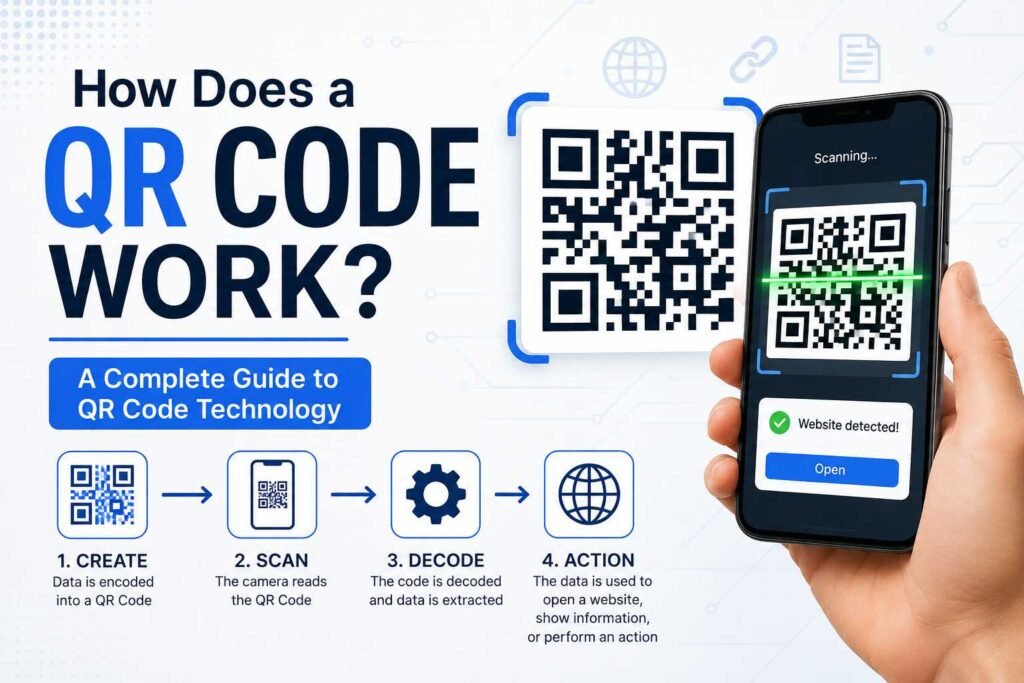
Knowing how to read QR code patterns can make daily tasks much easier. QR codes are now found on restaurant menus, product packaging, event tickets, business cards, advertisements, websites, payment systems, and more. Instead of typing a long website address or searching for information manually, you can scan a QR code with a smartphone and access the content within seconds.
The good news is that learning how to read a QR code usually requires no specialized tools or complex technical skills. Most modern smartphones feature built-in QR code scanning capabilities directly within their camera apps. You can also use online QR code scanners or dedicated apps if your phone does not recognize codes automatically.
In this guide, you will learn what QR codes are, how they work, and how to read QR code information using an iPhone, Android phone, computer, camera, screenshot, or online scanner.
What Is a QR Code?
A QR code—short for Quick Response code—is a two-dimensional barcode that stores information using a pattern of black and white squares. Unlike traditional barcodes, which store information horizontally, QR codes store data both horizontally and vertically.
A QR code can store various types of information, including:
- Website URLs
- Text messages
- Contact information (vCards)
- Wi-Fi network credentials
- Email addresses
- Phone numbers
- Map coordinates and locations
- Event details
- Payment information
- App download links
When a compatible scanner detects the pattern, it decodes the matrix and converts the visual pattern into usable data.
How Do QR Codes Work?
Understanding how QR codes work makes it easier to understand how to read QR code content effectively.
A QR code consists of small grid units called modules. Their precise arrangement represents encoded binary information. The larger squares located near the corners help scanning software identify the code’s positioning, orientation, and size.
When you point your smartphone camera at a QR code, the scanning software analyzes the pattern, decodes the information, and presents an appropriate action—such as displaying a web link or connecting to a network.
For example, if the QR code contains a website address, your phone will display a notification asking if you want to open that URL in your browser. The entire process typically takes less than two seconds.
How to Read QR Code With an iPhone
iPhones running modern iOS versions feature a built-in QR code scanner, making it easy to scan codes without downloading additional apps.
Step 1: Open the Camera
Unlock your iPhone and open the native Camera app from your Home screen, Control Center, or Lock screen.
Step 2: Point the Camera at the QR Code
Position the QR code inside the camera viewfinder. You do not need to press the shutter button or take a photo. Make sure the entire QR code is visible and that there is adequate lighting.
Step 3: Wait for the Notification
Once your iPhone recognizes the QR code, a yellow pop-up banner or notification link will appear directly over the code on your screen.
Step 4: Tap the Notification
Tap the notification banner to access the information or open the link stored inside the QR code.
How to Read QR Code on Android
Most modern Android smartphones can scan QR codes directly through their native Camera app or Google Lens integration.
Step 1: Open Your Camera
Launch your phone’s built-in Camera application.
Step 2: Position the QR Code
Point the camera toward the QR code, holding the phone steady. Ensure the entire code is centered within the frame.
Step 3: Wait for Recognition
Your phone should automatically detect and read the QR code pattern.
Step 4: Tap the Result
A pop-up link, banner, or action button will appear on the screen. Tap it to view or open the content.
Note: Depending on your device manufacturer (Samsung, Google, Xiaomi, etc.), you may need to enable “Scan QR codes” in your Camera settings if automatic recognition isn’t working.
How to Read QR Code From a Picture
Sometimes a QR code isn’t physically in front of you. You might receive a QR code as a photo, download it from a website, or save it to your camera roll. Fortunately, smartphones can read QR codes directly from stored images.
On iPhone
Open the saved image containing the QR code in the Photos app. Tap and hold the QR code directly within the photo, or tap the Live Text icon in the bottom corner to bring up the actionable link pop-up.
On Android
Open the QR code image in your Gallery or Google Photos app. Select the Google Lens icon at the bottom of the screen. Google Lens will analyze the image, detect the QR code, and display the corresponding link or text on screen.
How to Read QR Code From a Screenshot
QR codes often appear in screenshots—such as digital event tickets, payment receipts, or shared links.
To scan a QR code from a screenshot:
- Open your screenshot in your device’s photo gallery.
- Select Google Lens (on Android) or use Live Text (on iOS).
- Allow the tool to scan the image and highlight the QR code.
- Tap the detected link or action button to proceed safely.
How to Read QR Code on a Computer
If you encounter a QR code on a website while using your desktop computer or laptop, you have several ways to read it without needing a secondary device.
Use a Webcam
You can use camera-based web apps or browser extensions that access your computer’s webcam. Hold the physical QR code up to your webcam, or use a desktop screen-reading tool to scan a code visible on your display.
Upload an Image
If the QR code is saved as an image file on your computer, you can upload it to an online QR code reader tool to decode its contents instantly.
Use Your Smartphone
The simplest option is often displaying the QR code on your monitor and pointing your smartphone camera at the computer screen.
How to Read a QR Code Online
An online QR code reader is useful when your computer or phone lacks built-in automatic scanning tools.
The general process is straightforward:
- Open a reputable online QR code reader in your browser.
- Upload the QR code image file or paste a screenshot into the portal.
- Allow the web software to process and decode the image.
- Review the decoded information carefully.
- Click the resulting link only if you trust the source.
Security Warning: Avoid uploading sensitive QR codes (such as private Wi-Fi passwords or personal payment credentials) to untrusted third-party websites.
What Information Can You Get From a QR Code?
A QR code doesn’t just store website addresses—the type of data depends on how the code creator generated it.
Common examples include:
- Website Links: Directs users to landing pages, digital menus, or registration forms.
- Wi-Fi Information: Automatically connects devices to a network without manual password entry.
- Contact Information: Saves digital business cards (vCards) directly to your contact list.
- Plain Text: Displays plain messages, codes, or instructions.
- Geographic Locations: Opens specific map coordinates in Google Maps or Apple Maps.
- Payment Credentials: Directs users to digital wallet platforms or payment gateways.
Why Isn’t My Phone Reading the QR Code?
If your phone fails to recognize a QR code, one of the following factors may be the cause:
- Poor Lighting: Dim environments prevent the camera sensor from distinguishing black and white modules clearly. Move to a well-lit area or turn on your flash.
- Blurry Focus: Camera lenses take time to focus. Hold your phone steady and adjust your distance until the pattern appears sharp.
- Damaged QR Code: If parts of the printed code are smudged, torn, or covered, the scanner may fail to read it despite built-in error correction features.
- Incorrect Distance: Holding your phone too close or too far away prevents focus. Aim for a distance of 6 to 12 inches from the code.
- Disabled Settings: Ensure the native QR code scanning toggle is activated in your phone’s camera settings menu.
Tips for Scanning QR Codes
To ensure fast and reliable QR code scanning every time:
- Keep your camera lens clean and smudge-free.
- Ensure adequate lighting on the physical code.
- Hold your smartphone still while aiming.
- Make sure the entire QR code fits inside your frame.
- Avoid scanning at severe side angles—position yourself directly in front of the code.
- Keep your phone’s operating system up to date.
- Verify URL preview links carefully before opening them.
Are QR Codes Safe to Scan?
QR codes themselves are simply visual representations of data and cannot contain viruses directly. However, the destination URL stored inside a QR code can potentially lead to malicious or phishing websites.
Never blindly trust every QR code you encounter in public spaces, as attackers can paste malicious QR code stickers over legitimate ones.
Before tapping on a link, inspect the URL preview that appears on your screen. Exercise extreme caution if a QR code unexpectedly prompts you to:
- Enter sensitive passwords or account credentials.
- Provide personal financial details.
- Download unknown app installation files (.APK or executable files).
- Make unexpected payments.
If a destination site looks suspicious, close your browser tab immediately.
QR Code vs. Traditional Barcode
While both store data visually, QR codes and traditional barcodes function differently:
- Traditional Barcodes: One-dimensional (1D) designs consisting of vertical lines. They hold limited numerical data and are primarily used for retail inventory tracking.
- QR Codes: Two-dimensional (2D) matrix designs storing data horizontally and vertically. They hold significantly more information, support diverse data formats, and can be scanned from any angle.
Can You Read a QR Code Without an App?
Yes. Almost all modern iOS and Android smartphones feature native QR code scanning built directly into their standard Camera apps. You simply open your camera, point it at a code, and tap the link that appears—no third-party app installation required.
How to Read QR Code Without Another Phone
If a QR code appears on the screen of the device you are currently using, you don’t need a second phone to read it. You can simply take a screenshot, open it in your photo library, and use Google Lens (Android) or Live Text (iOS) to decode the image directly.
Common QR Code Scanning Problems and Solutions
| Problem | Possible Solution |
| Camera doesn’t detect code | Improve ambient lighting and allow camera to focus. |
| QR code appears blurry | Move device back to let lens auto-focus sharply. |
| Code is too small | Zoom in digitally or move closer to the code. |
| Printed code is damaged | Seek a digital copy or alternative link. |
| Link fails to load | Check your active internet/cellular connection. |
| Camera app ignores code | Check camera settings to ensure QR scanning is toggled ON. |
| Image/Screenshot won’t scan | Use Google Lens or iOS Live Text tools directly. |
Frequently Asked Questions
Can any phone read a QR code?
Most modern smartphones released in recent years can scan QR codes natively using their default camera app. Older devices may require downloading a lightweight QR scanner app from the App Store or Google Play Store.
Do I need an internet connection to scan a QR code?
Scanning and decoding the text pattern itself does not require an internet connection. However, if the QR code contains a website URL or online database link, active internet access is required to load that content.
Can I scan a QR code from a saved picture?
Yes. Both iPhone and Android allow you to scan QR codes stored inside saved photos and screenshots using built-in image recognition features like Google Lens or Live Text.
Why won’t my camera scan a QR code?
Your camera lens may be dirty, lighting may be insufficient, or your device may be positioned too close to the pattern. Additionally, check your device settings to confirm that QR scanning is enabled for your Camera app.
Can QR codes contain viruses?
A QR code itself is static data and cannot contain a virus. However, it can link to a malicious website designed to download malware or steal private information. Always verify the destination link before clicking.
Can I read a QR code from my computer screen?
Yes. You can point your smartphone camera at your computer screen, use built-in browser extension tools, or upload a screenshot to an online QR decoding website.
How fast can a QR code be scanned?
Under good lighting conditions with a clear camera lens, modern smartphone software can scan and decode a QR code in under a second.
Conclusion:
Learning how to read QR code information is simple once you know the basics. In most cases, all you need is your smartphone and its built-in camera app. Point your camera at the pattern, wait for the automatic recognition prompt, and tap the link to view the stored information.
QR codes make accessing websites, plain text, contact cards, Wi-Fi access, map locations, and payment portals fast and effortless. By using image recognition features on iOS and Android, you can also decode QR codes saved inside screenshots and photos without hassle.
Always remember to stay cautious: verify destination web addresses before interacting with them, and keep your personal data secure. With these straightforward steps, you can confidently scan QR codes anywhere you encounter them.
One Response