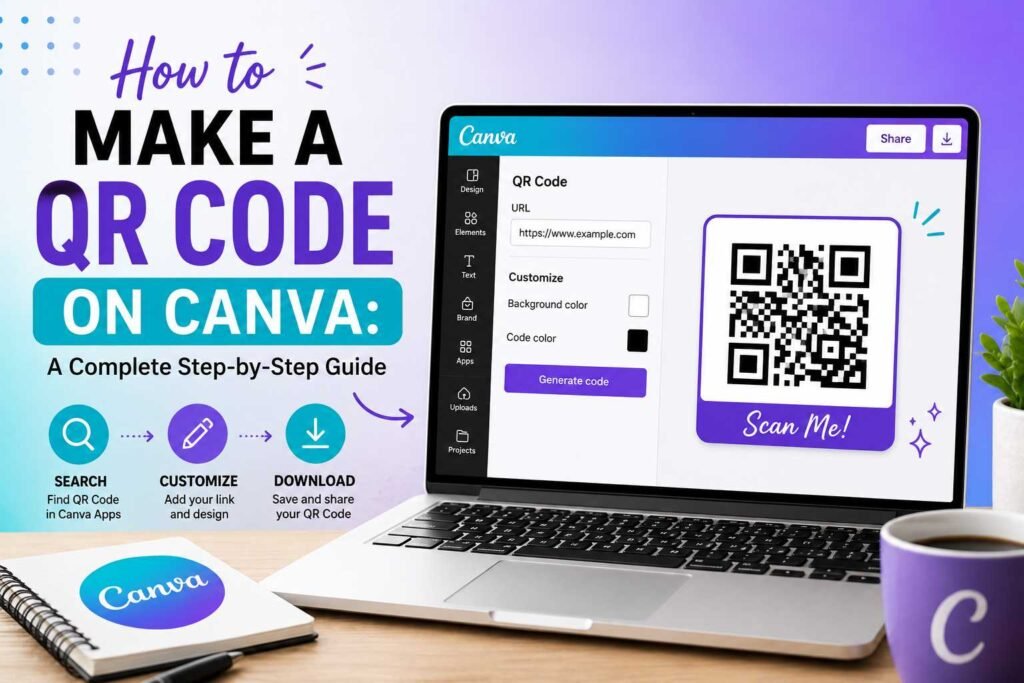
QR codes are a way to connect people with websites, social media profiles, and other online content. If you use Canva to create presentations, flyers, or business cards, you can also use it to create a QR code. Learning how to make a QR code on Canva is useful when you want your printed materials to connect directly to a digital destination.
The process is easy, even if you have never created a QR code before. Canva provides tools that let you generate a QR code from a URL and place it directly into your design. In this guide, we will explain how to make a QR code on Canva, how to customize your design around it, and how to test the code.
What Is a QR Code?
A QR code is a two-dimensional barcode that stores information in a machine-readable format. Commonly, QR codes are used to send people to a website or online resource. When someone scans a QR code using a smartphone camera, the phone recognizes the encoded information and provides an action—such as opening a website, online store, or social media profile.
Here are some things a QR code can open:
- A website or online store
- Restaurant menu
- Google Form
- Social media profile
- YouTube video
- Digital business card
- PDF document
- Event registration page
- Contact information
- App download page
QR codes are helpful for printed marketing materials because users can access information without typing a long URL manually.
Why Use Canva to Create a QR Code?
Canva is a platform that combines graphic design and content creation. Instead of generating a QR code separately and uploading it to your project, Canva lets you add QR functionality directly to your designs.
There are several advantages to using Canva:
- Easy to Use: You do not need advanced graphic design skills. Canva’s drag-and-drop interface makes it easy to create a design and add your QR code seamlessly.
- Convenient: If you are already designing a flyer or business card in Canva, you can add the QR code without switching between different programs.
- Professional Designs: You can surround your QR code with custom branding, instructions, and visual elements.
- Great for Marketing: A QR code can turn an offline advertisement into an interactive digital experience. Someone looking at a printed flyer can simply scan the code to visit your website.
What You Need Before Creating a QR Code
Before learning how to make a QR code on Canva, prepare the information you want your QR code to contain. For a website QR code, you need the exact URL. Make sure the URL is correct before generating the code—if you enter the wrong address, people who scan the QR code will be sent to the wrong webpage or encounter a broken link.
It is a good idea to open the URL in your browser first to confirm that the page loads properly on a mobile device.
How to Make a QR Code on Canva
While the Canva interface may update over time, the general process remains straightforward.
- Open Canva: Go to Canva, sign in to your account, and start a new design or open an existing project where you want to place the QR code.
- Open the Apps Section: Inside the Canva editor sidebar, look for the Apps option. This area contains various tools and integrations.
- Choose a QR Code Tool: Search for “QR Code” in the Apps section and select the official QR code generator tool.
- Enter Your URL: Copy your target website address and paste it into the URL field within the generator. Double-check the spelling, prefixes (like
https://), and page paths. - Generate the QR Code: Click the option to generate or add the code. Canva will instantly create the QR code and place it onto your design canvas.
- Position the QR Code: Drag and resize the QR code to a location where people can easily see and scan it. Avoid placing the QR code over complicated background images or dark, busy textures.
How to Make a QR Code on Canva That Looks Professional
Knowing how to make a QR code on Canva is only the first step. You also need to make sure your QR code works effectively within the overall design.
- Keep Strong Contrast: QR codes require high contrast between the code pattern and its background. A traditional dark/black QR code on a light or white background is usually the most reliable.
- Leave Empty Space: Do not crowd text or graphic elements directly against the QR code. Leave a cushion of blank space around it to improve camera readability.
- Avoid Over-Decoration: It may be tempting to add complex patterns or overlapping elements over the QR code. However, excessive modification can make scanning difficult or impossible.
- Make It Large Enough: A QR code that looks fine on a high-resolution computer screen may become too small when printed. Always factor in the physical distance from which users will be scanning it.
How to Add Text Near Your QR Code
Simply displaying a QR code without context may not motivate users to interact with it. Add a clear call to action (CTA) nearby, such as:
- Scan to learn more
- Scan for our website
- Scan to shop now
- Scan to view the menu
- Scan to register
- Scan to contact us
- Scan for directions
- Scan to follow us
A direct call to action informs users what to expect and encourages higher engagement.
How to Test Your Canva QR Code
One of the most important steps after learning how to make a QR code on Canva is testing it. Never assume that a QR code works perfectly simply because it was generated without errors.
Test on a Smartphone Screen
Display the QR code on your computer screen or export a digital proof, then use a smartphone camera to scan it. Verify that the correct webpage or destination opens quickly.
Test the Printed Version
If your QR code will be used on printed materials, print a test copy at full scale whenever possible. Scan it from various distances and under different lighting conditions to ensure smooth scanning.
Can You Customize a QR Code in Canva?
Canva is primarily a graphic design platform, making it great for customizing the layout around a QR code. You can easily create a branded design containing your company logo, brand colors, and clear instructions.
However, be cautious about heavily modifying the QR code pattern itself. Excessive altering of the high-contrast blocks can prevent smartphone cameras from recognizing the encoded data. Keeping the QR code pattern standard while customizing the surrounding design is usually the safest approach.
Static vs. Dynamic QR Codes
Another consideration is whether your QR code is static or dynamic.
- Static QR Codes: The destination URL is hardcoded into the barcode pattern. If you need to change the destination URL later, you will have to generate and print a completely new QR code.
- Dynamic QR Codes: These direct the user to a short redirection URL, allowing you to change the final destination page even after the QR code has been printed. Dynamic QR services often provide scan analytics as well.
If you are running a long-term business campaign or updating destination links frequently, evaluate whether you need dynamic features provided by specialized QR management tools.
Use Cases for Canva QR Codes
1. Canva Flyers
Flyers are one of the most practical uses for QR codes. Instead of cluttering a flyer with long web addresses, you can use a clean layout:
Discover Our Services
Learn more about what we offer.
[Scan QR Code to Visit Our Website]
2. Business Cards
Business cards have limited physical space. Using a QR code allows you to direct prospective clients to a digital contact page, portfolio, or LinkedIn profile without overwhelming the card layout.
3. Restaurant Menus
Restaurants can place a QR code on table tents or printed menus:
Scan to view our full daily menu & specials
This makes updating prices or seasonal menu items quick and cost-effective.
4. Event Posters
Posters are ideal for QR codes because people can scan them while passing by. Common event uses include:
- Concert & theater tickets
- Community gathering registrations
- Real estate open houses
- Workshop & conference sign-ups
Common QR Code Mistakes to Avoid
Even after learning how to make a QR code on Canva, several common mistakes can prevent users from successfully scanning it:
- Making the Code Too Small: A tiny QR code is difficult for smartphone cameras to focus on.
- Using Low Contrast: Placing a light-colored QR code on a light background reduces readability.
- Covering Parts of the Code: Placing text, logos, or icons over key parts of the barcode pattern interferes with data recognition.
- Forgetting to Test: Always test digital and physical proofs before printing large runs.
- Linking to Broken or Non-Mobile URLs: Most scans occur on mobile devices—ensure your target landing page is active and mobile-optimized.
- Poor Placement Location: Avoid placing QR codes in areas with low lighting, high glare, or hard-to-reach physical spots.
Canva QR Codes vs. Dedicated QR Code Generators
Canva is extremely convenient when you are already building a design project, allowing you to generate and integrate a code in one workflow.
However, dedicated QR code platforms may offer advanced features such as dynamic link redirection, scan location analytics, custom frame styling, and automated file downloads.
- Use Canva: For straightforward design projects like flyers, posters, and business cards.
- Use Specialized Tools: For enterprise campaigns requiring dynamic link updates and detailed tracking analytics.
Frequently Asked Questions
Can I make a QR code directly in Canva?
Yes, you can make a QR code directly in Canva using the built-in QR code generator found in the Apps section.
Is it free to create a QR code in Canva?
Standard QR code generation in Canva is free to use. However, always review Canva’s feature access depending on whether you are on a Free or Pro account.
Why isn’t my Canva QR code scanning?
Check the code’s sizing, background contrast, surrounding margin space, print resolution, and target URL accuracy. Ensure no design elements are overlapping the code.
Can I change where my QR code goes after printing?
Standard static QR codes created in Canva cannot have their destination changed once printed. Changing the link requires generating a new QR code unless you use an external dynamic QR code service.
How large should a printed QR code be?
There is no single rule for size. The ideal size depends on the scanning distance and camera quality. For small items like business cards, aim for at least 0.8 to 1 inch (2–2.5 cm) wide, and scale up for larger items like posters.
Can I link a QR code to a PDF document?
Yes. You can host your PDF online (via Google Drive, Canva, or your website) and use the public URL to generate the QR code.
Conclusion:
Learning how to make a QR code on Canva provides a seamless bridge between your printed offline materials and online digital content. By ensuring correct URL entry, strong visual contrast, sufficient margins, proper sizing, and thorough testing, you can create professional and functional designs for any project.
One Response