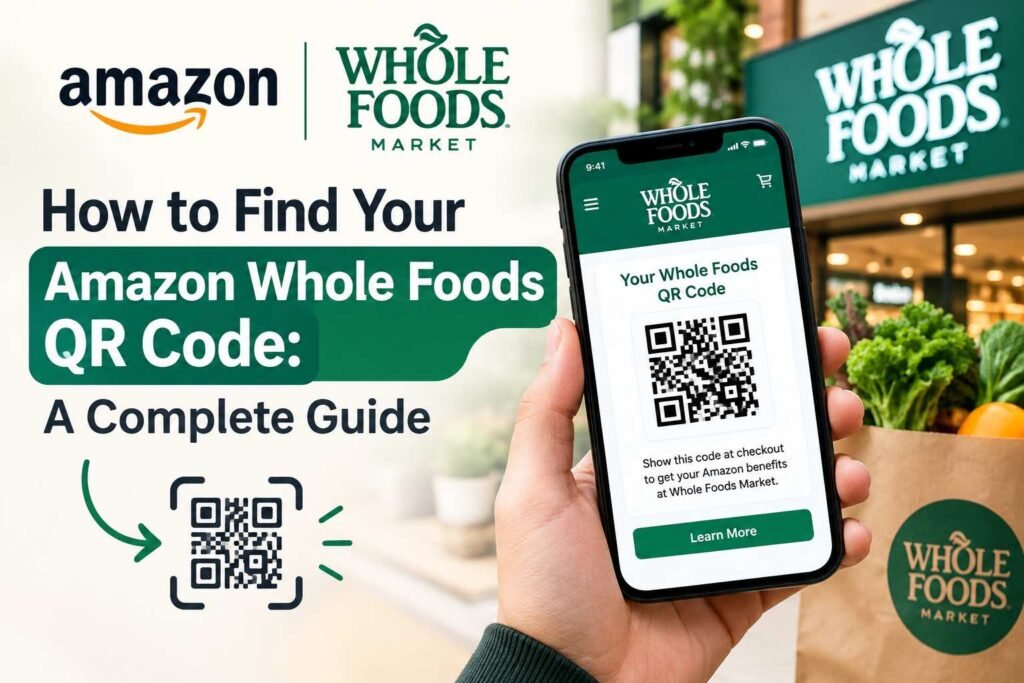
If you want to know how to find your Amazon Whole Foods QR code, the process is quick once you know where to look in your mobile apps. Amazon and Whole Foods Market offer seamless digital integration, allowing Prime members to access exclusive in-store discounts, pay at checkout, and manage account-related features simply by scanning a digital barcode or QR code.
Depending on whether you are using the Amazon Shopping app or the dedicated Whole Foods app, the QR code (often referred to as your In-Store Code) appears in a few specific sections. In this complete guide, we’ll explain step-by-step where to find the QR code, what it’s used for, how to troubleshoot scanning issues, and alternative options if your code won’t load.
What Is the Amazon Whole Foods QR Code?
The Amazon Whole Foods QR code—officially known as the In-Store Code—is a dynamic barcode displayed within Amazon’s mobile apps. A QR code (Quick Response code) is a two-dimensional barcode that optical scanners read instantly at the register.
Scanning this code at checkout allows you to:
- Apply Amazon Prime savings (including an extra 10% off yellow-sale tag items).
- Access exclusive, Prime-only deal pricing throughout Whole Foods stores.
- Pay for groceries using digital payment methods linked to your Amazon account.
- Scan items using Amazon Dash Carts or self-checkout stations.
- Verify account details during return drops or customer service transactions.
Because Amazon regularly updates its mobile interfaces, the exact screen location of the code can shift slightly over time.
How to Find Your Amazon Whole Foods QR Code in the Amazon App
The easiest way to locate your Amazon Whole Foods QR code is through the standard Amazon Shopping app.
Method 1: Using the Search Bar Shortcut
- Open the Amazon Shopping app on your iPhone or Android device.
- Look directly underneath the main search bar at the top of the home screen.
- Tap In-Store Code.
- Your unique QR code will display instantly on the screen, ready for the cashier or register scanner.
Method 2: Via the Whole Foods Tab or Account Menu
- Open the Amazon app and ensure you are logged into the Amazon account linked to your Prime membership.
- Tap the In-Store or Whole Foods tab located in the navigation bar (or open the main profile/account menu).
- Select Whole Foods Market.
- Tap the In-Store Code button to bring up your scannable Prime barcode.
How to Find Your QR Code in the Whole Foods Market App
If you prefer using the dedicated Whole Foods Market app, finding your code is equally simple:
- Download and open the Whole Foods Market app.
- Sign in using your standard Amazon Prime credentials.
- Tap the Prime Code or In-Store Code option usually featured prominently at the bottom or top of the home screen.
- Present the displayed QR code to the cashier or scan it at self-checkout before paying.
Tip: Not every checkout interaction requires a phone scan. If you don’t have your phone on you, you can also give the cashier the phone number linked to your Amazon Prime account to apply your savings.
Why Can’t I Find the Amazon Whole Foods QR Code?
If you’re opening your app at checkout and cannot locate the QR code, several common factors could be causing the issue:
1. Your App Is Out of Date
Older versions of the Amazon or Whole Foods app may feature outdated menu layouts or lack the latest feature integrations. Open your device’s app store and update to the latest app version.
2. You’re Signed Into the Wrong Amazon Account
If you have multiple Amazon logins (such as a personal and business account), ensure you are signed into the specific account holding your active Amazon Prime subscription.
3. Weak Internet Connection Inside the Store
Grocery stores frequently suffer from poor cellular reception, preventing the app from loading live account data from Amazon’s servers. Switch between store Wi-Fi and mobile data, or open the app before stepping inside the store.
4. Prime Membership Status
If your Amazon Prime membership has lapsed or is currently on hold due to a payment issue, the Prime savings barcode option may disappear from your menu shortcuts.
How to Troubleshoot QR Code Scanning Errors at Checkout
Finding the QR code is only half the battle—sometimes the scanner at the register struggles to read your phone’s screen. Follow these tips to fix scanning issues fast:
- Increase Screen Brightness: Turn your phone’s display brightness up to maximum. Scanners require strong light contrast to pick up digital barcodes off glass screens.
- Clean Your Display: Fingerprints, dust, or smudges over your screen can interfere with optical camera readers.
- Avoid Extreme Zoom: Ensure the entire QR code—including its square border frame—is visible on your display without being cut off by screen edges.
- Hold the Phone Steady: Keep your device 4 to 6 inches away from the scanner window for a brief second to allow the camera to focus.
- Turn Off Dark Mode Temporarily: In rare cases, phone system dark modes invert contrast levels, making it difficult for older register hardware to read barcodes.
Amazon In-Store QR Codes vs. Product QR Codes
It is helpful to distinguish between your personal account QR code and the product-specific QR codes found around Whole Foods stores.
| Code Type | Location | Purpose |
| In-Store Account QR Code | Inside your Amazon or Whole Foods mobile app | Scanned by the store register to apply Prime discounts and process digital payments. |
| Product / Shelf QR Codes | Printed on product packaging, shelf tags, or posters | Scanned by your phone’s camera to view ingredient lists, recipes, or promotional details. |
Is It Safe to Share Your Amazon QR Code?
You should treat your Amazon In-Store QR code as sensitive personal data. Because this code links directly to your Amazon account details and configured digital payment cards, you should never post screenshots of your code publicly on social media or share them with strangers.
If you want family members to share your Whole Foods Prime savings, consider setting up an Amazon Household, which lets linked family accounts generate their own individual, secure codes.
Frequently Asked Questions
Where is the Amazon Whole Foods QR code located in the Amazon app?
The fastest way to find it is by opening the Amazon Shopping app and tapping In-Store Code located directly underneath the top search bar. Alternatively, navigate to the Whole Foods tab in the main menu.
Can I get Whole Foods Prime discounts without scanning a QR code?
Yes!If you cannot load the app, tell the cashier at checkout that you are a Prime member and provide the primary phone number attached to your Amazon Prime account.
Does a screenshot of the Amazon QR code work at checkout?
It depends. While static screenshots sometimes work for simple discount verification, Amazon frequently updates security tokens on live payment codes. It is always best practice to load the dynamic code live within the app.
Can I find my Whole Foods QR code on the Amazon website using a desktop computer?
No. Because the code is meant for in-store physical scanning, it is designed exclusively for supported mobile web browser experiences or the Amazon and Whole Foods mobile applications.
Is the Whole Foods QR code the same as my Amazon One palm scan?
No, but they link to the same account. Amazon One allows you to hover your palm over a reader device at checkout, whereas the QR code requires scanning your phone screen. Both methods pull up your Prime savings automatically.
Conclusion
Finding your Amazon Whole Foods QR code is straightforward once you know where to look in your mobile apps. Whether you choose the quick “In-Store Code” shortcut under the Amazon app search bar or use the dedicated Whole Foods Market app, having your code ready at checkout ensures you never miss out on Prime-exclusive savings and streamlined digital payments.
Keep your app updated, boost your screen brightness when approaching the register, and remember that providing your registered phone number serves as a reliable backup whenever cell service lets you down!
One Response