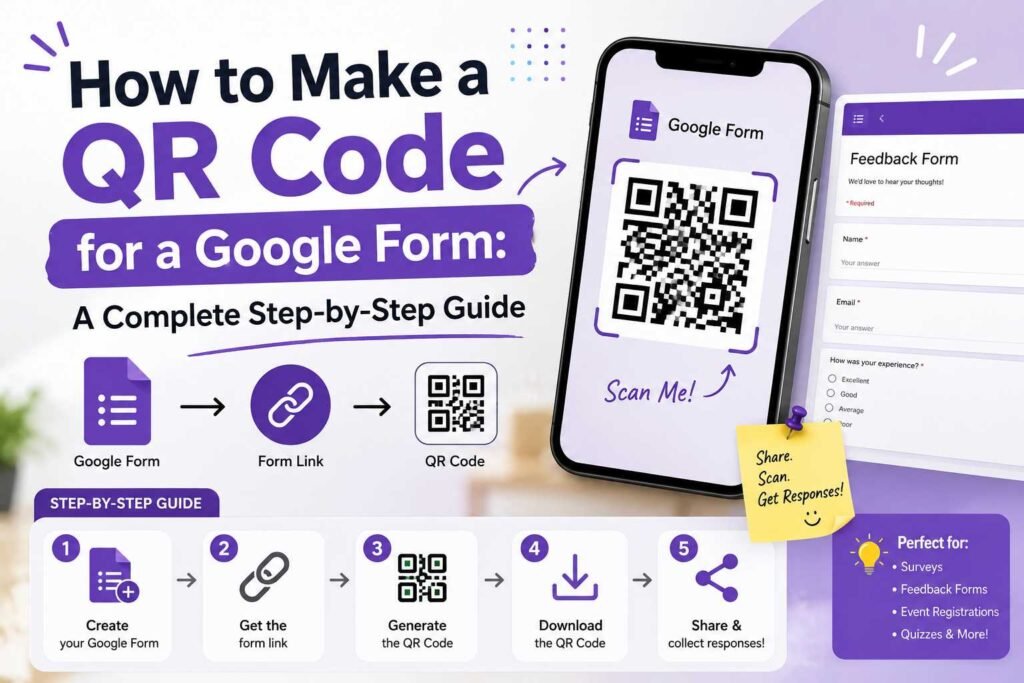
Learning how to make a QR code for a Google Form makes it significantly easier for people to access and complete your form. Instead of typing a lengthy URL into a browser, users can scan the code with their smartphone camera to open the form instantly.
QR codes are ideal for surveys, event registrations, customer feedback, restaurant menus, and classroom assignments. Creating one takes only a few minutes and requires no technical expertise.
Step-by-Step: Creating Your QR Code
Step 1: Create and Finalize Your Google Form
Go to Google Forms, start a new blank form or select a template, and populate your questions. Ensure all required fields, titles, and options are completely set up before moving forward.
Step 2: Adjust Access and Privacy Settings
Click the Settings tab at the top of your form to verify sharing permissions.
- Decide whether respondents need to sign in to a Google account.
- If your form is for the general public, disable restrictions that require users to belong to a specific organization.
Step 3: Copy the Respondent Link
Click the Send button at the top right of Google Forms, select the link icon, and copy the provided web address.
Important: Always copy the public respondent link obtained via the Send menu—never use the URL from your browser’s address bar, as that is an internal editing link. Test the link in an incognito window to ensure it loads properly for external users.
Step 4: Generate the QR Code
- Open a reputable online QR code generator.
- Select the URL or Website input option.
- Paste your copied Google Form link into the URL field.
- Customize the visual options (color, shape, or logo) if desired, keeping the design simple to preserve scannability.
- Click Generate and download the file in high-resolution PNG or vector format.
Step 5: Test Before Distribution
Before printing or publishing, test the final QR code image using a smartphone camera under normal lighting. Verify that it opens the live form smoothly and allows test submission.
Practical Applications for Google Form QR Codes
+-------------------+-----------------------------------------------------------------------+
| Use Case          | Examples & Placement                                                 |
+-------------------+-----------------------------------------------------------------------+
| Print Marketing   | Flyers, posters, business cards, brochures, and print advertisements  |
| Live Events       | Event registration, check-ins, instant polls, and post-event feedback |
| Local Business    | Table tents, checkout counters, receipts, and service request forms  |
| Education         | Classroom assignments, quizzes, field trip sign-ups, and surveys      |
+-------------------+-----------------------------------------------------------------------+
Best Practices for Reliable Scanning
- High Contrast: Always use a dark QR code on a light, solid background.
- Size Matters: Print the code large enough to be scanned from a comfortable distance (at least 1 x 1 inch for close-range scanning).
- Maintain the “Quiet Zone”: Leave an empty border around the outer edge of the code so scanners can isolate it from surrounding text or graphics.
- Add a Fallback Option: Include a short text instruction or shortened URL underneath the code for users who cannot scan it.
Static vs. Dynamic QR Codes
- Static QR Codes: The Google Form URL is encoded directly into the matrix. They are free, do not expire, and work indefinitely as long as the underlying Google Form URL remains active.
- Dynamic QR Codes: The code routes through a redirect link. This allows you to update the destination link later without reprinting the physical code, while also providing scan analytics.
Frequently Asked Questions
Does editing my Google Form require a new QR code?
No. You can add, edit, or remove questions in your Google Form without changing the QR code, provided the form’s core sharing URL stays the same.
Is it free to make a QR code for a Google Form?
Yes. Creating static QR codes from URLs is completely free using standard web tools.
Do QR codes generated for Google Forms expire?
Standard static QR codes do not expire. They remain functional as long as the destination Google Form remains active and accessible online.
Conclusion
Learning how to make a QR code for a Google Form is a simple way to make online forms easier to access. The basic process is straightforward: create your Google Form, copy the respondent-facing URL, enter that link into a QR code generator, create the code, and test it before sharing.
QR codes can be useful for businesses, schools, events, surveys, registrations, customer feedback, and many other purposes. By using a clear design, sufficient size, strong contrast, and a reliable destination link, you can create a QR code that provides a smooth experience for your audience.
Most importantly, always test your QR code before printing or publishing it. A few seconds of testing can prevent users from encountering a broken link or inaccessible form.