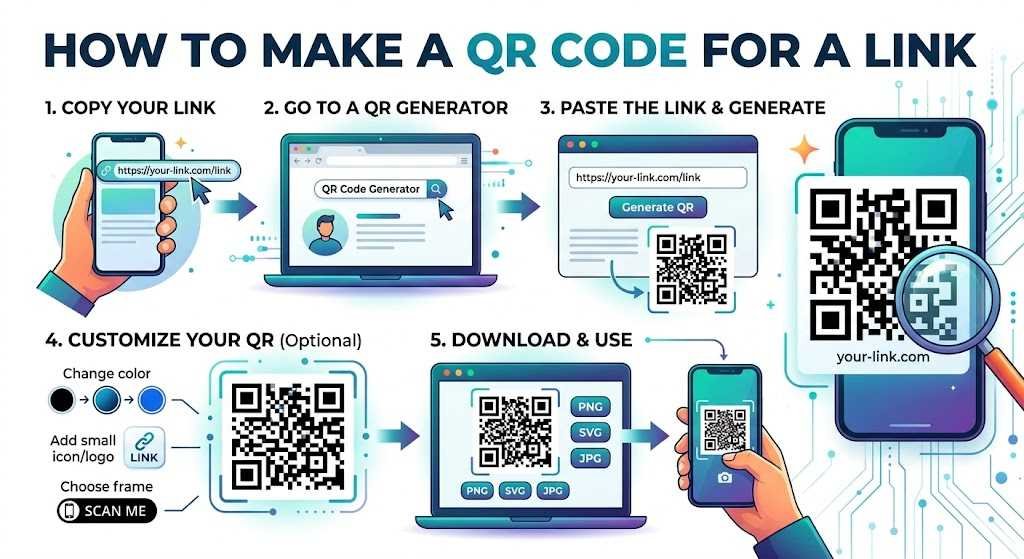
Learning how to make a QR code for a link is one of the most effective ways to connect offline audiences with digital content. Instead of asking someone to manually type a long website address into a browser, you can convert any URL into a scannable QR code. Once scanned with a smartphone camera, the code instantly directs users to a website, online store, social media profile, digital menu, registration page, or video.
QR codes are widely used across restaurants, businesses, marketing campaigns, product packaging, printed ads, business cards, and educational materials. Because users can access information seamlessly without typing, QR codes offer a fast and convenient user experience.
What Is a QR Code for a Link?
A QR code (Quick Response code) is a two-dimensional matrix barcode capable of storing data. When you generate a QR code for a website link, the code encodes destination parameters that trigger a smartphone camera or scanner to open the specified URL immediately.
For example, instead of printing a long, complex text URL like [https://example.com/products/new-arrivals](https://example.com/products/new-arrivals), you can print a simple QR code. A customer points their phone camera at the image and is immediately taken to the destination page.
Why Use a QR Code for a Link?
There are several compelling reasons why businesses, creators, and marketers choose to implement URL QR codes:
- Instant Access: Users bypass manual URL typing, opening web pages in a matter of seconds.
- Bridge Print and Digital: Print media—such as flyers, posters, brochures, packaging, and business cards—become interactively linked to online content.
- Mobile-Friendly Convenience: Most modern iOS and Android smartphones feature built-in QR scanning directly within their native camera apps.
- Enhanced Marketing Campaigns: Direct users straight to specific landing pages, signup forms, video tutorials, or promotional discounts.
- Elimination of Typos: Complex or lengthy links are scanned perfectly without human error.
How to Make a QR Code for a Link: Step-by-Step
Creating a custom QR code requires only your destination URL and an online QR code generator.
+-----------------------------------------------------------------------+
|                       HOW TO CREATE A LINK QR CODE                    |
+--------------------------+--------------------------+-----------------+
| 1. Select Destination    | 2. Choose Generator      | 3. Select URL   |
|    Copy your target URL  |    Open a QR code tool   |    Choose Link  |
+--------------------------+--------------------------+-----------------+
| 4. Input Address         | 5. Generate Code         | 6. Customize    |
|    Paste URL into tool   |    Click generate button |    Add style    |
+--------------------------+--------------------------+-----------------+
| 7. Export File           | 8. Scan Test             | 9. Publish      |
|    Download PNG or SVG   |    Test across devices    |    Print & share|
+-----------------------------------------------------------------------+
Step 1: Choose Your Link
Select the exact webpage you want the QR code to open. Verify that the web link works, is mobile-optimized, and is publicly accessible before creating your code.
Step 2: Open a QR Code Generator
Navigate to a trusted online QR code tool. For example, using a service like QRCodeQuickly
Allows you to turn URLs into customizable, scannable QR images quickly.
Step 3: Select the URL or Link Option
Select the URL, Website, or Link data type within the generator interface to ensure the code encodes destination protocol information properly.
Step 4: Enter Your URL
Paste your complete destination web address into the input box (e.g., [https://www.example.com](https://www.example.com)). Double-check for spelling or formatting errors.
Step 5: Generate the QR Code
Click Generate QR Code or Create to compile the encoded visual pattern.
Step 6: Customize the QR Code
Modify your QR code to align with your personal or business branding by adjusting:
- Colors: Set high-contrast body and background shades.
- Frames & Borders: Add actionable frame text like “Scan Me”.
- Logos: Place a central logo or icon to build brand trust.
- Patterns & Corners: Adjust pixel shapes for a custom look.
Step 7: Download the File Format
Select the appropriate file format for your intended distribution channel:
- PNG / JPG: Best for digital displays, email signatures, websites, and social media graphics.
- SVG / PDF: Scalable vector formats ideal for high-resolution professional print materials.
Step 8: Test the QR Code
Always test your generated QR code across multiple iOS and Android devices under varying lighting conditions before publishing or printing mass materials.
Static vs. Dynamic QR Codes
When making a QR code for a link, understanding the difference between static and dynamic types helps determine the best option for your project.
| Feature | Static QR Codes | Dynamic QR Codes |
| URL Editing | Fixed permanently upon creation | Destination URL can be updated anytime |
| Scan Analytics | No tracking available | Tracks scans, location, time, and device |
| Pattern Density | Gets complex with long URLs | Remains simple via short redirect links |
| Best Used For | One-time use, personal links, fixed URLs | Marketing campaigns, business cards, menus |
How to Customize a QR Code Without Breaking It
Customizing your code improves brand consistency, but scannability must remain the top priority:
- Maintain High Contrast: Always use a dark foreground pattern over a light background. Inverting these shades often prevents standard camera sensors from reading the code.
- Keep Adequate Quiet Space: Leave a margin (quiet zone) around the outer edges of the QR pattern to separate it from surrounding graphics.
- Avoid Oversaturating Design: Placing too many central logos or heavy artistic patterns can obstruct error correction zones.
- Scale for Distance: Larger viewing distances require proportionally larger QR print dimensions (e.g., billboards require larger sizes than business cards).
Common QR Code Mistakes to Avoid
- Broken or Non-Mobile Links: Directing users to pages that do not render properly on mobile screens.
- Low Color Contrast: Using light gray or yellow graphics on white paper background.
- Printing Without Testing: Executing a large print run prior to verifying that the code successfully resolves to the target webpage.
- Tiny Scale: Printing the QR code too small to be focused on by smartphone cameras.
- Busy Placement: Placing codes on reflective, curved, or moving surfaces where scanning becomes difficult.
Frequently Asked Questions (FAQ)
Can I make a QR code for any website link?
Yes, any valid, accessible URL—including homepages, Google Drive documents, social media profiles, and online forms—can be converted into a QR code.
Do users need a special app to scan a QR code?
No, most modern iOS and Android smartphones feature built-in QR scanning functionality within their native camera applications.
What is the difference between static and dynamic QR codes?
Static QR codes encode the destination URL directly into the image and cannot be changed once created. Dynamic QR codes route through a short redirect link, allowing you to update the final destination URL without re-printing the code.
What file format is best for printing QR codes?
Vector formats like SVG or PDF are recommended for high-resolution print jobs because they scale up indefinitely without pixelation. For digital use, PNG is standard.
Conclusion:
Understanding how to make a QR code for a link enables you to bridge physical touchpoints with digital assets seamlessly. By choosing a reliable QR generator like QRCodeQuickly
, selecting the right link type, preserving high visual contrast, and testing across devices, you can deploy reliable, high-performing QR codes across all your print and digital media.