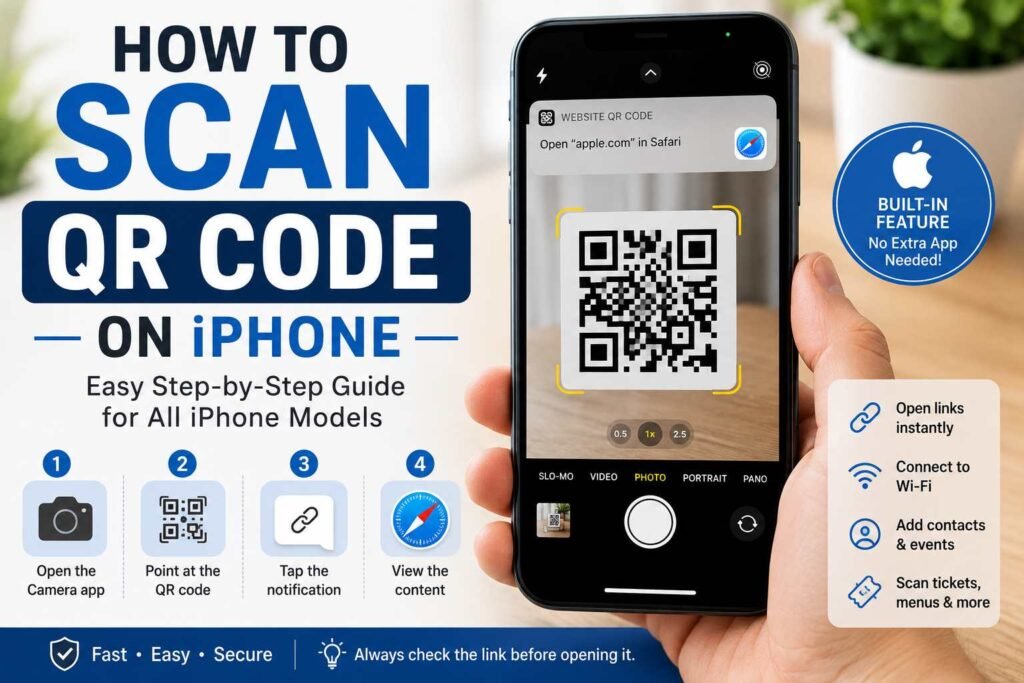
Learning how to scan a QR code on an iPhone is extremely useful for opening websites, connecting to Wi-Fi, accessing digital menus, making payments, viewing tickets, and sharing information. Apple has made QR code scanning simple by integrating the feature directly into the iPhone Camera app, so you usually do not need to download a separate scanner app.
Whether you have a newer iPhone or an older model that supports modern iOS features, the basic process is straightforward: open the Camera app, point it toward the QR code, and wait for your iPhone to recognize it. A notification will appear, allowing you to access the stored information instantly.
This complete guide explains how QR codes work, how to scan them using built-in iPhone features, what to do when scanning fails, how to scan QR codes from photos, and essential safety tips to keep in mind.
What Is a QR Code?
A QR code is a matrix barcode designed to store different types of information. QR stands for “Quick Response.” These codes are engineered to be read quickly by cameras and scanning devices.
Unlike traditional linear barcodes, QR codes can store significantly more data and can be scanned from various angles. They are commonly used to:
- Open websites
- Display contact information
- Connect to Wi-Fi networks
- Access menus and digital catalogs
- Download mobile applications
- Verify event tickets
- Provide product details
You will often see QR codes on restaurant tables, posters, business cards, product packaging, advertisements, receipts, signs, and television screens. Your iPhone’s camera recognizes these codes automatically, making access fast and convenient.
How to Scan a QR Code on iPhone Using the Camera
The easiest method to scan a QR code is by using the built-in Camera app.
Step 1: Open the Camera App
Unlock your iPhone and open the Camera app. You can launch it from the Home Screen, Lock Screen, or Control Center. You do not need to switch camera modes; standard Photo mode works automatically.
Step 2: Point Your Camera at the QR Code
Hold your iPhone so the entire QR code appears clearly within the camera frame. You do not need to take a picture—simply keep the QR code visible and steady so the camera can process it. Make sure your fingers are not blocking the code and your camera lens is clean.
Step 3: Wait for the Notification
When your iPhone recognizes the QR code, an actionable notification banner or pop-up link will appear near the camera view. If the QR code contains a website link, the web address will be displayed.
Step 4: Tap the Notification
Tap the notification to open the content. For example, if the QR code contains a web address, your iPhone will open the page in Safari. Always review the destination URL before proceeding, especially if the source of the QR code is unfamiliar.
How to Scan a QR Code on iPhone From Control Center
Apple includes a dedicated Code Scanner tool in iOS that can be accessed quickly through the Control Center.
To enable and use the Code Scanner:
- Open Settings on your iPhone.
- Tap Control Center.
- Scroll down and tap the green + icon next to Code Scanner.
- Swipe down from the top-right corner of your screen (or up from the bottom on older models) to open Control Center.
- Tap the Code Scanner icon.
- Point your iPhone at the QR code.
The Code Scanner provides a dedicated, high-contrast scanning interface that opens links automatically, which can be faster than using the standard Camera app.
How to Scan a QR Code on iPhone From a Photo or Screenshot
If someone sends you a QR code via Messages, email, or social media, or if you take a screenshot of a QR code on your display, you can scan it directly using Apple’s built-in Live Text feature.
Scanning via the Photos App:
- Open the Photos app on your iPhone.
- Select the image or screenshot containing the QR code.
- Tap and hold the QR code directly inside the image, or tap the Live Text icon (a small square with text lines) in the bottom-right corner.
- Tap the URL banner or pop-up menu option that appears to open the link.
Tip: If the QR code is on a separate computer screen or tablet, you can also simply point your iPhone’s camera at that screen to scan it.
How to Scan a QR Code for Wi-Fi
Wi-Fi QR codes allow you to join a wireless network without typing out long passwords manually.
- Open the Camera app on your iPhone.
- Point your camera at the Wi-Fi QR code (often found on the back of routers or displayed in public venues).
- Wait for the notification banner reading “Join [Network Name] Network” to appear.
- Tap the notification and select Join.
Safety Note: Only connect to Wi-Fi networks from trusted sources to protect your personal data.
How to Scan a QR Code to Open a Website
Opening web pages is the most common use case for QR codes. Businesses frequently place them on marketing materials, product labels, and menus.
When you point your camera at the code, iOS will display the target URL above or below the code. Before tapping it:
- Inspect the domain name for subtle misspellings or odd extensions.
- Ensure the website matches the context of where the QR code is displayed.
- Remember that a QR code is merely a shortcut link; it does not automatically guarantee safety.
How to Scan QR Codes for Payments
QR codes are widely used for mobile payments and banking transfers.
- Open your specific banking or digital wallet app (such as PayPal, Venmo, or your bank’s app).
- Locate the in-app Scan or Pay option.
- Align the merchant’s QR code within the scanner frame.
- Review the recipient name and amount carefully before authorizing the transaction.
If a payment QR code looks tampered with or glued over, verify the payment details directly with the merchant before completing the transaction.
How to Scan QR Codes on iPhone for Tickets
Airlines, event venues, and transit systems frequently use QR codes for check-in and boarding passes.
- Via Camera App: Point your camera at the printed or digital ticket to view booking details.
- Via Apple Wallet: If you added the pass to Apple Wallet, open the Wallet app and tap the pass to display the QR code for scanning at venue turnstiles or gates.
- Screen Brightness: Turn your screen brightness up to maximum when presenting a QR code on your phone to external scanners.
How to Scan a QR Code on iPhone Without Downloading an App
You do not need to download third-party scanner apps from the App Store. iOS provides native scanning through multiple built-in utilities:
- The Camera App: For general, everyday scanning.
- Control Center Code Scanner: For quick access with a dedicated interface.
- Photos App (Live Text): For scanning codes saved as photos or screenshots.
- Apple Wallet & Banking Apps: For secure ticket management and financial transactions.
Using built-in features keeps your device secure and avoids unnecessary app permissions or unwanted advertisements.
Why Is My iPhone Not Scanning a QR Code?
If your iPhone fails to recognize a QR code, consider these common causes:
- The QR Code Is Too Small or Too Far Away: The camera sensor needs enough resolution to read the grid pattern. Move closer gradually.
- The QR Code Is Too Close: If you hold the camera too close, it may fail to focus properly. Maintain a distance of several inches.
- Poor Lighting: Low-light environments prevent the camera from detecting high contrast. Step into a brighter area or turn on your iPhone flashlight.
- Glare and Reflections: Glossy signs, laminates, and screens reflect light into the lens. Angle your phone slightly to eliminate glare.
- Dirty Camera Lens: Smudges or fingerprints obscure detail. Wipe the lens clean with a soft microfiber cloth.
- Damaged or Low-Contrast Code: If the printed code is smudged, torn, or lacks contrast against its background, the camera may not process it.
How to Fix QR Scanning Problems on iPhone
If scanning is not working smoothly:
- Close and reopen the Camera app.
- Clean your camera lenses gently.
- Ensure Scan QR Codes is enabled under Settings > Camera.
- Adjust your distance—start 6–12 inches away and move slowly toward the code.
- Tap the screen on the QR code area to force the camera to focus.
- Ensure your iPhone software is updated (Settings > General > Software Update) and restart your device.
How to Scan QR Codes From a Computer or Another Phone
To scan a QR code displayed on a computer screen, laptop, or another smartphone screen:
- Ensure the brightness on the display device is turned up.
- Open the Camera app on your iPhone.
- Point the lens at the screen, keeping your phone parallel to the display to prevent distortion.
- Tilt your phone slightly if screen glare interferes with detection.
Tips for Creating Easy-to-Scan QR Codes
If you are generating QR codes for personal or business use:
- Maintain High Contrast: Use dark patterns on a light background (classic black-on-white is best).
- Keep Adequate Size: Printed codes should generally be at least 1 x 1 inch (2.5 x 2.5 cm) in size.
- Provide a Quiet Zone: Leave blank space around all four edges of the code so scanners can isolate the pattern.
- Test Before Printing: Scan your generated code with multiple iPhone models and lighting conditions prior to mass printing.
QR Code Safety & Privacy Tips for iPhone Users
While QR codes are convenient shortcuts, treat them with the same caution as unknown web links:
- Inspect the Destination URL: Preview the link before tapping to open it.
- Watch Out for Physical Tampering: Be suspicious of physical QR code stickers placed on top of existing signage at parking meters, restaurants, or payment terminals.
- Avoid Unsolicited Codes: Do not scan unexpected QR codes sent via unsolicited emails or direct messages.
- Never Enter Sensitive Data Mindlessly: Do not enter passwords or financial information on web pages opened via QR codes unless you have verified the domain name carefully.
- Keep iOS Updated: Security patches in current iOS versions protect your browser against malicious web destinations.
Frequently Asked Questions
Can every iPhone model scan QR codes?
Yes, all modern iPhones running iOS 11 or later support native QR code scanning through the Camera app.
Do I need a separate app to scan QR codes on iPhone?
No. The built-in Camera app and Control Center Code Scanner eliminate the need for third-party scanning apps.
Can I scan a QR code from a photo saved in my gallery?
Yes. Open the image in the Photos app and press down on the QR code, or use the Live Text button in the corner to extract the link.
Is it safe to scan Wi-Fi QR codes?
It is safe if the code is provided by a trusted business or acquaintance. However, connecting to unknown networks can expose your device’s traffic to privacy risks.
What should I do if a QR code is blurry?
Clean your camera lens, increase ambient lighting, move a few inches back to allow autofocus to adjust, or ask for a clearer digital copy of the code.
Final Thoughts
Scanning QR codes on your iPhone is a fast, seamless way to access information, connect to networks, and complete transactions without typing long web addresses. By utilizing the built-in Camera app, Control Center shortcuts, and Live Text features in Photos, you can safely interact with QR codes in seconds. Always remember to double-check destination URLs before entering credentials or making payments to ensure your browsing experience remains secure.