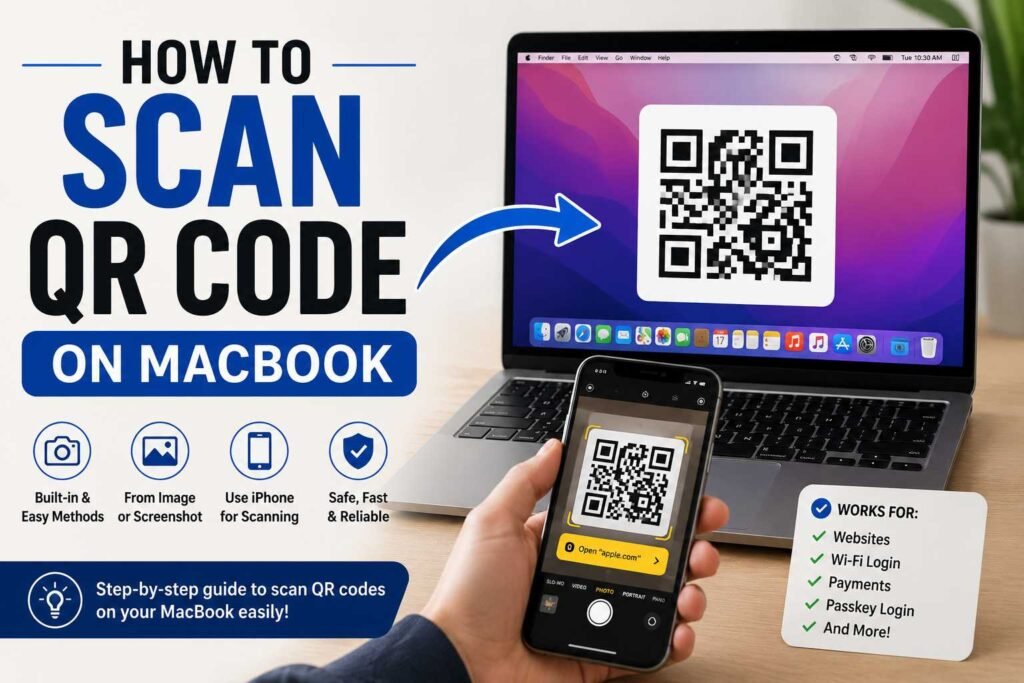
If you are wondering how to scan a QR code on a MacBook, you may be surprised to learn that the process is different from scanning a QR code with an iPhone. A MacBook does not generally provide the same built-in Camera app QR-scanning experience found on iOS devices. However, there are several convenient ways to access QR code information using your Mac, including scanning an image, using your iPhone alongside your Mac, or leveraging compatible tools like QRCodeQuickly
.
QR codes are everywhere today. You encounter them on websites, restaurant menus, product packaging, event tickets, advertisements, payment pages, and login screens. They provide a quick way to open a website, access information, authenticate an account, or connect to a digital service.
If you primarily use a MacBook, you might wonder whether you can simply point its built-in FaceTime camera at a QR code to open the link. The answer depends on the situation and the macOS feature or application you are using.
This guide explains the best methods to scan physical QR codes, how to read QR codes directly from screenshots and saved images on your Mac, how to use your iPhone with your MacBook, and what to do when a QR code fails to scan.
Can You Scan a QR Code With a MacBook?
Before learning how to scan QR code on MacBook, it is important to understand one key distinction: macOS does not provide a general-purpose, system-wide QR scanner in the same way that iOS provides through its native Camera app.
Standard QR-code scanning instructions focus on the iPhone and iPad Camera app or the built-in Code Scanner feature, where you simply point the camera at a QR code and tap the resulting link.
On a MacBook, your approach depends on where the QR code appears:
- Digital QR code on screen: If the QR code is displayed as an image, PDF, or screenshot on your Mac, you can use image-based tools, Live Text recognition, or web utilities like QRCodeQuickly.
- Physical QR code in front of you: Using your iPhone alongside your Mac is usually the fastest solution.
- Authentication QR code: Newer versions of macOS can use a built-in or attached camera for specialized QR code authentication as part of Platform Single Sign-On (SSO) and web-based authentication features.
Method 1: Scan a Physical QR Code Using Your iPhone
The most seamless answer to how to scan QR code on MacBook when dealing with physical items is to use your iPhone to scan the code directly.
This is ideal when the QR code is printed on:
- Restaurant menus
- Product packaging
- Posters and flyers
- Business cards
- Television or external display screens
- Printed documents
- Event tickets
iPhone and iPad users can quickly scan QR codes using the Camera app or the native Code Scanner feature. When the camera recognizes the code, a notification banner appears with the destination link.
Steps to Scan With an iPhone
- Open the Camera app on your iPhone.
- Point the camera lens at the QR code.
- Keep the code centered inside the camera frame.
- Wait for the camera to recognize the code.
- Tap the yellow link button or banner notification that appears on screen.
Tip: If you need the resulting link on your MacBook, simply use AirDrop, Universal Clipboard (copy on iPhone, paste on Mac), or send it via Messages or Notes.
Method 2: Scan a QR Code From an Image on Your MacBook
Another common requirement is reading a QR code that is already saved as an image file on your Mac.
You might have:
- A screenshot containing a QR code
- A downloaded PNG or JPEG image
- A photo transferred from your phone
- An embedded image inside a document
Using Live Text in macOS (macOS Monterey or Later)
If you are running macOS Monterey or a newer operating system, Apple’s built-in Live Text feature can automatically detect QR codes inside images:
- Open the image file in Preview or Photos.
- Hover your cursor over the QR code inside the image.
- Look for a small popup icon or link preview that appears directly on or near the QR code.
- Click the link or right-click to copy the URL.
Why Image Scanning Is Useful
Scanning a QR code directly from an image file is convenient when you cannot physically point a camera at the screen. If someone emails you a screenshot of a QR code, you can extract the link directly without needing to photograph your computer screen with another device.
Method 3: Use a Web-Based QR Code Scanner
If you are looking into how to scan QR code on MacBook and the code is stored on your computer, you can also use a web-based QR reader like QRCodeQuickly
.
General Process:
- Open your preferred web browser (Safari, Chrome, Firefox).
- Visit a trusted online tool such as QRCodeQuickly.
- Select the option to upload or scan an image file.
- Choose the screenshot or image file stored on your MacBook.
- Allow the online tool to parse the image and extract the decoded URL or text.
- Verify and open the link.
Privacy Warning: Avoid uploading QR codes containing sensitive personal information, single sign-on authentication tokens, Wi-Fi passwords, or financial links to unknown third-party websites.
Method 4: Use a Mac QR Code Scanner App
If you frequently work with QR codes on desktop, downloading a dedicated macOS application from the Mac App Store can streamline your workflow.
A dedicated Mac QR scanner app can allow you to:
- Decode QR codes directly from desktop screenshots
- Use your MacBook webcam to read physical codes
- Instantly copy decoded text or URLs to your clipboard
- Keep a log history of previously scanned codes
Before installing any third-party app, check the developer’s credentials, user reviews, and privacy practices in the Mac App Store. A basic QR scanner should only require camera or screen access and does not need access to your personal files or network data.
Method 5: Use Your MacBook Camera in Supported Applications
When asking how to scan QR code on MacBook using the built-in FaceTime camera, it is important to understand the hardware limitations.
While the built-in camera functions well for video calls, macOS lacks a native “Camera” app with default QR-reading features like iOS. However, specific macOS apps and system features can access the camera for decoding.
For instance, native QR code authentication is supported in enterprise environments for web-based authentication and Platform Single Sign-On (SSO).
Method 6: Use Continuity Camera With Your Mac
Apple provides Continuity Camera, a feature that allows your Mac to interact directly with your iPhone camera.
Continuity Camera lets you use your iPhone or iPad to scan documents or take pictures directly into native Mac apps such as Finder, Notes, Mail, Messages, Keynote, Pages, and TextEdit. Both devices must have Wi-Fi and Bluetooth enabled and be signed into the same account.
While Continuity Camera is optimized for scanning physical document pages into PDFs, opening your iPhone’s native Camera app directly or using a browser-based utility like QRCodeQuickly
remains the faster choice for reading a standard QR code URL.
How to Scan a QR Code From a Screenshot on MacBook
Understanding how to scan QR code on MacBook is especially helpful when dealing with desktop screenshots.
If a friend sends you a screenshot containing a QR code, there is no need to print it or scan it off your screen with a phone.
Step-by-Step Screenshot Workflow
- Capture or Save the Screenshot: Use
Command + Shift + 4to capture the QR code on your screen, or save the image file to your Downloads or Desktop folder. - Open in Preview: Double-click the file to open it in macOS Preview.
- Check for Live Text: If you are using macOS Monterey or later, hover over the QR code in Preview until the link icon appears, then click it.
- Use an Online Decoder: If your Mac does not automatically recognize the code, open a trusted image-based tool like QRCodeQuickly and upload the screenshot.
- Verify the URL: Inspect the decoded web address before visiting the page to ensure it is safe.
How to Scan a QR Code From a PDF on MacBook
PDF documents often contain embedded QR codes for event registration, support links, or digital tickets.
If you open a PDF in Apple’s native Preview app and the QR code cannot be clicked directly:
- Capture a clean screenshot of the QR code using
Command + Shift + 4. - Open the captured image.
- Use Live Text or visit QRCodeQuickly to decode the link.
While Apple’s Preview app includes robust text recognition capabilities for reading text within PDFs, QR decoding relies on specific image-link detection features.
How to Scan a QR Code From a Website or Passkey Login
Many modern web services display a QR code on screen when you log in, set up two-factor authentication (2FA), or use passkeys.
Scanning Passkeys With iPhone
When a Mac displays a QR code for passkey or web-based authentication:
- Ensure Bluetooth is enabled on both your Mac and your iOS device.
- Select the passkey or mobile login option on your Mac screen.
- Open the Camera app on your iPhone or iPad and point it at the QR code on your MacBook screen.
- Confirm your identity on your iPhone using Touch ID or Face ID.
How to Scan a QR Code Without a Smartphone
If you do not have an iPhone or Android phone nearby, you can still scan QR codes directly on your MacBook using these alternatives:
- Use Live Text in Preview: Open the image in macOS Preview and hover your cursor over the QR code to reveal the clickable link.
- Use QRCodeQuickly: Upload saved QR code images or screenshots directly through your browser.
- Use a Mac App Store Utility: Install a dedicated third-party Mac QR reader.
- Use a Webcam App: Use third-party webcam software that supports real-time QR code reading via your FaceTime camera.
Troubleshooting: Why Won’t Your QR Code Scan?
If your QR code is not scanning properly, try these simple fixes:
- Enlarge the Image: Small or low-resolution QR codes are difficult for cameras and software to decode. Zoom in on the image or resize the window.
- Improve Lighting: For physical codes, ensure the area is well-lit and free from harsh glares or reflections.
- Keep the Code Square: Tilted, distorted, or heavily angled QR codes can fail to parse. Keep the image straight.
- Avoid Cropping the Borders: QR codes rely on the white border space (quiet zone) around their edges for alignment. Ensure the full code is visible.
- Clean Your Lens: If using an iPhone or external webcam, ensure the camera lens is clean and smudge-free.
QR Code Safety and Security
Mastering how to scan QR code on MacBook should always go hand-in-hand with basic cybersecurity awareness. A QR code is simply a visual representation of data—usually a URL—and can potentially direct you to malicious websites, phishing portals, or unwanted downloads.
Safety Best Practices:
- Preview the URL: Always inspect the full web address before clicking or entering passwords.
- Watch for Phishing (“Quishing”): Be cautious of QR codes placed on public posters, unverified emails, or parking meters, as scammers sometimes paste malicious QR stickers over legitimate codes.
- Look for HTTPS: Ensure the destination site uses secure encryption (
https://). - Avoid Surprise Downloads: If scanning a code automatically prompts a file download, cancel it immediately unless you specifically expected it.
Summary: The Best Method for Every Situation
| Scenario | Best Method |
| Physical paper/poster code | Use your iPhone Camera app. |
| Code in a screenshot or image | Use Live Text in Preview or QRCodeQuickly. |
| Code inside a PDF | Take a screenshot and parse it with Live Text or an online tool. |
| Passkey or account login | Scan the Mac screen code with your iPhone camera. |
| No smartphone available | Use QRCodeQuickly or a desktop Mac QR app. |
Frequently Asked Questions
Can a MacBook scan QR codes directly?
A MacBook does not have a native, general-purpose Camera app for scanning QR codes like an iPhone does. However, you can scan QR codes on a Mac using Live Text in Preview (macOS Monterey or later), online decoders like QRCodeQuickly
, third-party Mac apps, or your iPhone camera.
How do I scan a QR code from a picture on my MacBook?
Save the picture to your Mac and open it in Preview. Hover over the QR code with your cursor to see if macOS detects the link automatically via Live Text. If it doesn’t, upload the image to QRCodeQuickly
.
Can I use my MacBook FaceTime camera to scan QR codes?
While the physical camera works, macOS does not include a default application for scanning everyday QR codes with the FaceTime camera. You will need a third-party Mac App Store app or supported web application to read codes using your webcam.
Can I scan a QR code displayed on my Mac screen with my iPhone?
Yes. Open the Camera app on your iPhone, point it at your MacBook screen, and tap the yellow link notification that appears.
Is it safe to scan QR codes?
QR codes themselves are safe, but the links they contain can lead to malicious sites. Always check the destination URL before logging in, entering payment information, or downloading files.
Conclusion
Learning how to scan QR code on MacBook comes down to choosing the right tool for the job. Because macOS treats QR scanning differently than iOS, the best method depends on whether the code is printed on paper, displayed on your screen, saved as an image, or embedded in a document.
For physical codes, using your iPhone’s Camera app is almost always the fastest option. For digital codes on your screen, native macOS tools like Live Text in Preview or web utilities like QRCodeQuickly
make extracting links effortless. Combine these methods with smart online safety habits to keep your scanning quick, simple, and secure.
One Response