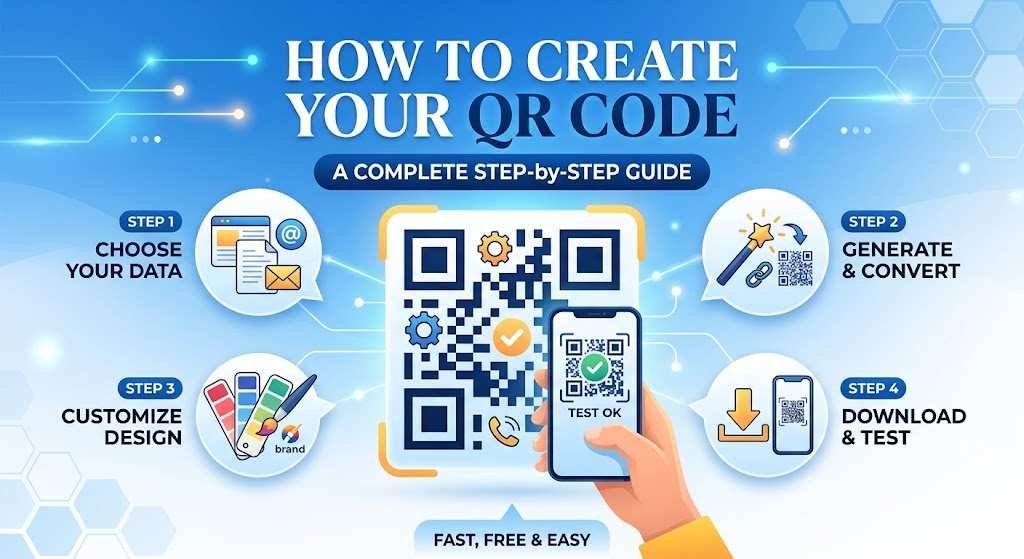
Learning how to create your own QR code is easier than ever before. QR codes are now used for websites, payments, contact information, social media profiles, event registrations, digital menus, Wi-Fi access, and many other purposes. With a free QR code generator, you can turn a link or any kind of information into a code in just a few minutes.
Whether you are creating a QR code for your business, website, marketing campaign, event, or personal use, the process usually involves a few simple steps. You decide what kind of information you want to share, enter that detail, customize the design if you want, and then download the code.
This guide explains everything you need to know about creating and using your QR code.
What Is a QR Code?
A QR code is a two-dimensional barcode that stores information in a matrix pattern of black and white or colored squares. The letters “QR” stand for “Quick Response.”
Unlike standard barcodes, which store information in only one direction, QR codes can hold data both horizontally and vertically. This allows them to store significantly more information and makes them suitable for a wide range of digital uses.
Most modern smartphones can scan QR codes directly through their built-in camera app. When someone scans your code, their phone recognizes the information and performs an action—like opening a website, showing contact details, or connecting to a Wi-Fi network.
Why Create Your Own QR Code?
There are many good reasons to create a QR code. Businesses often use them to make it easier for customers to access websites, product pages, menus, contact info, and special offers.
Individuals can create QR codes for invitations, portfolios, social media profiles, Wi-Fi networks, digital business cards, and personal projects.
QR codes also help bridge the gap between physical items and digital content. For example, a printed flyer can include a QR code that sends readers directly to an online registration form.
The flexibility of QR technology means that one small image can provide instant access to complex information without requiring users to type out long web addresses.
What Can You Put in a QR Code?
Before learning how to create your QR code, it helps to understand what kind of information a QR code can store.
Common Types of QR Code Data:
- Website URLs
- Text messages
- Email addresses
- Phone numbers
- Contact details (vCards)
- Wi-Fi network settings
- Social media profiles
- Google Forms
- Event details & calendars
- Digital menus
- App download links
- Payment information
- Product landing pages
- Business locations & maps
The specific features available depend on the QR code generator platform you choose.
How to Create Your QR Code for a Website
Creating a QR code for a website is one of the most common uses of this technology.
Step 1: Choose Your QR Code Generator
Start by selecting a reliable QR code generator. Pick a service that is easy to use and lets you download a high-quality version of the finished code. For a simple website link, a basic free generator usually does the job.
Step 2: Select the URL Option
Look for a menu choice like “URL,” “Website,” or “Link.” Choose it to create a QR code designed to redirect users to a web page.
Step 3: Enter Your Website Address
Copy the full URL of the website or landing page you want people to see (e.g., [https://example.com](https://example.com)). Make sure the address is correct before generating the code—a typo in the URL will render the QR code useless.
Step 4: Generate the Code
Click the button provided by the tool, such as “Create QR Code” or “Generate.” The service will process your URL into a scannable pattern.
Step 5: Download the QR Code
Download the image in an appropriate file format. PNG works great for everyday digital and small print uses, while SVG (vector format) is better when you need to scale the code up for professional printing.
Specialty QR Code Use Cases
How to Create Your QR Code for Text
QR codes can store plain text without needing an internet link. This is helpful when you want to share a direct message, instruction, note, or serial number.
Simply select the Text option in your QR code generator, type your message, and generate the code. Keep in mind that larger amounts of text lead to more complex, dense patterns, so simpler text codes are usually easier to print and scan reliably.
How to Create a QR Code for a Google Form
Google Forms are often used for surveys, registrations, questionnaires, and feedback.
- Open your Google Form.
- Click Send and copy the form’s shareable URL.
- Open your preferred QR code generator.
- Choose the URL option.
- Paste the Google Form link.
- Click Generate and test the code before placing it on posters, flyers, or presentations.
How to Create a QR Code for Wi-Fi
A Wi-Fi QR code lets guests connect to a network instantly without typing in long passwords.
Depending on the generator, you will need to enter:
- Wi-Fi Network Name (SSID)
- Password
- Security Encryption Type (e.g., WPA, WPA2, or WEP)
After entering the details, generate the code and test it with a smartphone. Because this QR code contains network access details, avoid posting it publicly unless you are comfortable with anyone scanning it to join your network.
How to Create a QR Code for Your Contact Information
A QR code can act as a digital business card (vCard). You can encode:
- Full Name
- Phone Number
- Email Address
- Company & Job Title
- Website & Physical Address
When scanned, the information appears on screen as a contact card that users can instantly save to their smartphone address book.
How to Create Your QR Code for Social Media
You can create a QR code that leads users directly to your social media profiles. Copy the URL of your profile (Instagram, LinkedIn, YouTube, etc.), select the URL option in your generator, and paste the link. Test the code to ensure it opens the correct account before printing it on business cards or packaging.
Customizing Your QR Code Design
Customization Options
Most QR code generators offer design customization. Depending on the platform, you can modify:
- Foreground & Background Colors
- Corner Frame Shapes
- Inner Square Patterns
- Logo Placement
- Call-to-Action Frames
Customization helps your QR code align with your visual brand identity. However, do not over-design it—excessive decorations can make the code difficult for cameras to read.
Should You Add a Logo to a QR Code?
Adding a logo makes a QR code more recognizable and trustworthy. For business use, placing a small company logo in the center reinforces brand identity.
QR codes feature built-in error correction, which allows them to remain scannable even if part of the code is covered. However, the logo must not obscure too much of the pattern. Always test a logo-embedded QR code thoroughly across multiple devices before printing.
Static vs. Dynamic QR Codes
One of the most important decisions when creating a QR code is choosing between static and dynamic formats.
| Feature | Static QR Codes | Dynamic QR Codes |
| Data Storage | Encoded directly into the image | Points to a short redirection URL |
| Editable Target | No (Destination is permanent) | Yes (Can change link anytime) |
| Scan Analytics | Not available | Tracks scan counts, locations, and devices |
| Pattern Density | Gets dense with large data | Stays clean and simple |
| Best For | One-time links, fixed text, personal Wi-Fi | Marketing campaigns, business cards, print media |
Best Practices for Professional Results
How to Make Your QR Code Look Professional
- Maintain High Contrast: A dark code pattern on a light background is the most reliable structure for camera scanners.
- Leave a Quiet Zone: Maintain a clear margin of empty space around the code border so scanners can isolate the image.
- Include a Call-to-Action (CTA): Frame your code with clear text like “Scan to Visit Site” or “Scan for Menu” so users know why they should scan it.
How to Test Your QR Code
Never print or distribute a QR code without testing it first.
- Open your default smartphone camera or a scanning app.
- Ensure the camera detects the code quickly.
- Verify that the correct website or information loads.
- Test the code on both iOS and Android devices.
- Check scanning readability from different distances and lighting conditions.
Common QR Code Mistakes to Avoid
- Poor Color Contrast: Using light colors for the pattern or low-contrast combinations like yellow on white makes scanning nearly impossible.
- Over-Customization: Heavy graphics, gradients, or oversized logos can break the error-correction system.
- Broken or Incorrect URLs: Typos in static codes cannot be fixed after printing.
- Undersized Printing: Printing a code too small prevents smartphone camera lenses from focusing on the pattern properly.
- Damaged or Distorted Material: Low-resolution, stretched, or glossy reflective prints hamper scan rates.
Technical Specifications & Sizing
How Large Should a QR Code Be?
The ideal size depends on the intended scanning distance:
- Small Items (Business Cards, Packets): Minimum $2 \times 2 \text{ cm}$ ($0.8 \times 0.8 \text{ inches}$).
- Medium Items (Flyers, Menus, Posters): Around $3 \times 3 \text{ cm}$ to $5 \times 5 \text{ cm}$.
- Large Items (Billboards, Signs): Calculate size based on a 10:1 ratio (Scanning Distance $\div 10 = \text{Minimum Code Width}$).
File Formats for Print
- PNG / JPG: Best suited for digital display, emails, and small, standard printing.
- SVG / EPS / PDF: Vector formats best suited for commercial printing, scalable designs, and large banners without losing quality.
Business Applications & Security
How to Use QR Codes for Business
- Restaurants: Place table codes for contactless digital menus and ordering.
- Retail & Products: Add codes to packaging for user manuals, ingredient origin, or warranty registration.
- Events & Marketing: Use codes on direct mail, event badges, and billboards to capture leads or drive ticket sales.
Costs and Pricing
- Free Generators: Ideal for simple, permanent static QR codes.
- Paid Subscriptions: Required for dynamic features, link editing, scan analytics, team management, and custom domain routing.
Expiration Considerations
- Static Codes: Do not expire naturally; they work as long as the underlying URL or information remains active.
- Dynamic Codes: May stop redirecting if the hosting provider’s account or subscription expires.
QR Code Security Tips
- Verify Destinations: Always preview the destination URL before submitting sensitive information or passwords.
- Physical Security: Check that public QR codes on posters or tables haven’t been covered up with malicious sticker replacements.
Frequently Asked Questions
How do I create my QR code?
Choose a QR code generator, select the type of data to encode, enter your information, customize the design if desired, download the file, and test it with a smartphone camera.
Can I create a QR code for free?
Yes. Many online platforms offer free creation tools for basic, static QR codes.
Do I need a specialized mobile app to create or scan a QR code?
No. You can create QR codes using web browsers on computers or phones, and modern smartphones have built-in QR scanners right inside their standard camera apps.
Can I change a QR code’s link after printing it?
Only if you created a Dynamic QR Code. Static QR codes encode data directly into the printed image and cannot be modified later.
What is the single best image format for a QR code?
For digital use, high-resolution PNG is standard. For professional graphic design and physical printing, SVG (vector) is best because it scales infinitely without blurriness.
Conclusion
Learning how to create your own QR code is a straightforward process that can be useful for both personal and business projects. You can turn a website, Google Form, contact details, Wi-Fi information, social media profile, or other data into a scannable code within minutes.
The most important steps are choosing the right information, using a reliable QR code generator, maintaining good contrast, leaving enough space around the code, and testing it before sharing or printing.
Whether you need a QR code for a business card, website, event, restaurant menu, marketing campaign, or personal project, thoughtful design and proper testing will help ensure that people can scan it quickly and reach the information you intended to share.
One Response